

Wallet Connect Instruction
Welcome to Blockpass! If you’re an individual user ready to register your identity profile with a service, we’ve got you covered with a step-by-step guide to seamlessly connect your wallet. Here’s a breakdown:
In this article, we use MetaMask https://metamask.io/ as an example
Why do I need to sign a message?
Section titled “Why do I need to sign a message?”Signing a message with your wallet serves as proof that you are the rightful owner of the funds within that wallet. It also verifies that you have control over the private key associated with that address.
Trouble connecting your wallet? Try the manual connection option
Wallet connection guidelines
Section titled “Wallet connection guidelines”Now that you have your identity account set up, it’s time to link your wallet via MetaMask to verify ownership. Let’s delve into the directions for a successful wallet connection:
1. Submit KYC using a Web Browser on Desktop
Section titled “1. Submit KYC using a Web Browser on Desktop”- Web Browser on Desktop connects wallet installed on Desktop (highly recommended)
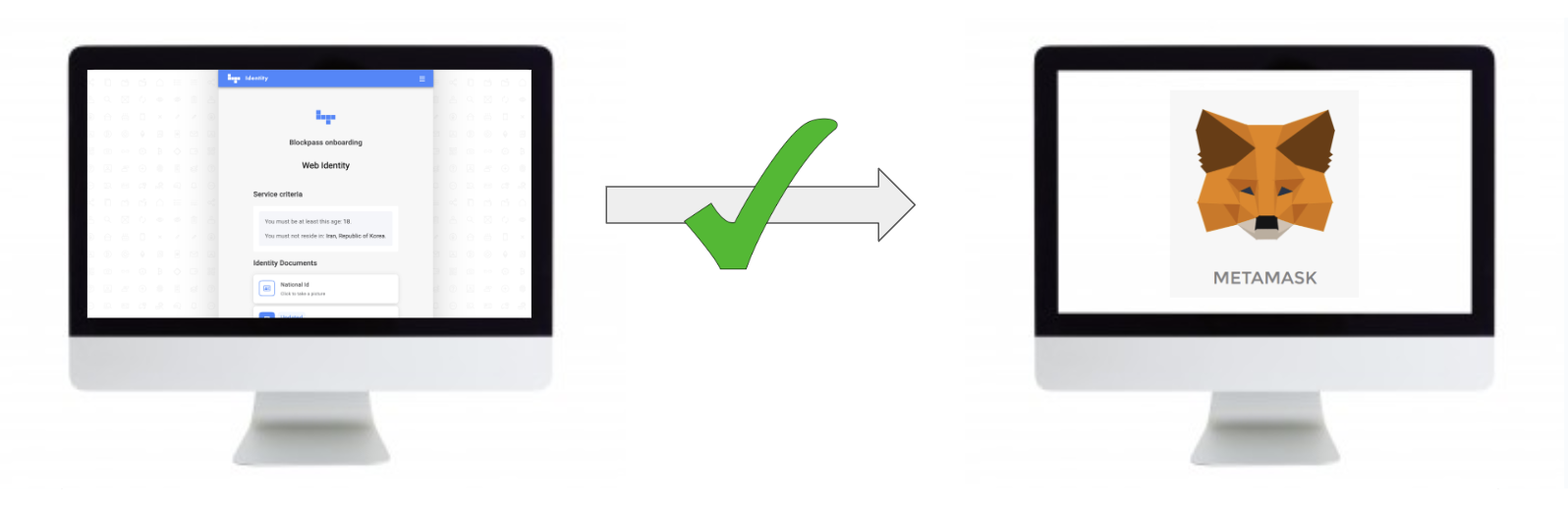
Tutorial:
- Web Browser on Desktop connects wallet installed on Mobile
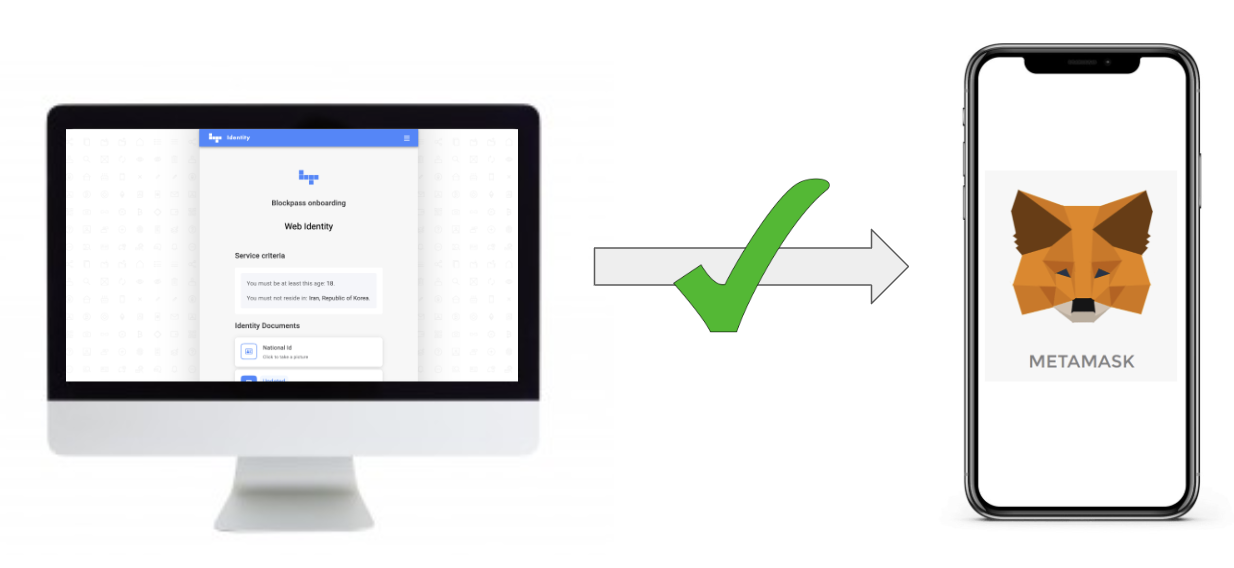
Tutorial:
2. Submit KYC using a Web Browser on Mobile Phone
Section titled “2. Submit KYC using a Web Browser on Mobile Phone”-
Web Browser on Mobile connects wallet installed on Mobile
- Android
-
- IOS
(Please note that Chrome browser on iOS is not supported. Please use Safari for registration.)
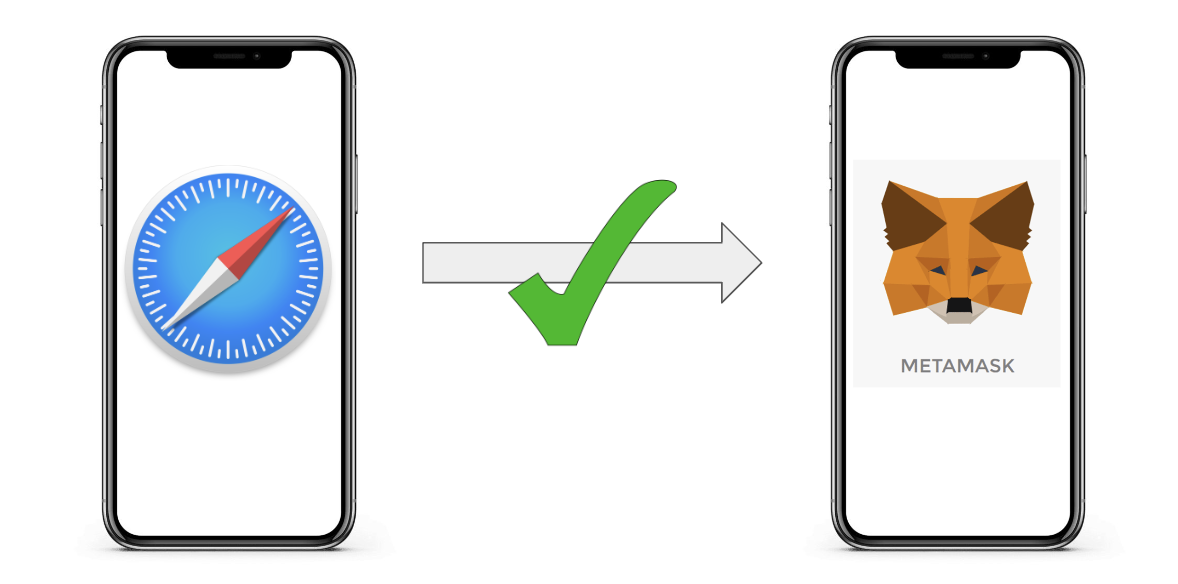
Tutorial:
💡 Tips
Section titled “💡 Tips”Prepare Your MetaMask App:
- To streamline the process, it’s advisable to have the MetaMask app open before connecting your wallet.
Consider Changing Router Connection:
- If you encounter difficulties signing your wallet due to system issues, try switching to another router connection. Sometimes, this simple change can resolve connectivity issues and facilitate a smoother experience.
📥 Need Further Assistance?
Section titled “📥 Need Further Assistance?”- If this document doesn’t address your concerns or you require additional support, directly contact the Blockpass Support Team at https://help.blockpass.org/hc/en-us/requests/new.