

Get Started with Blockpass
Welcome to Blockpass! This guide will walk you through the process of setting up your account, choosing a plan, and launching your first verification service.
Step 1: Signing up as a Business Account
Section titled “Step 1: Signing up as a Business Account”To manage your compliance services, you must first register on the Blockpass Single Sign-On (SSO) system.
-
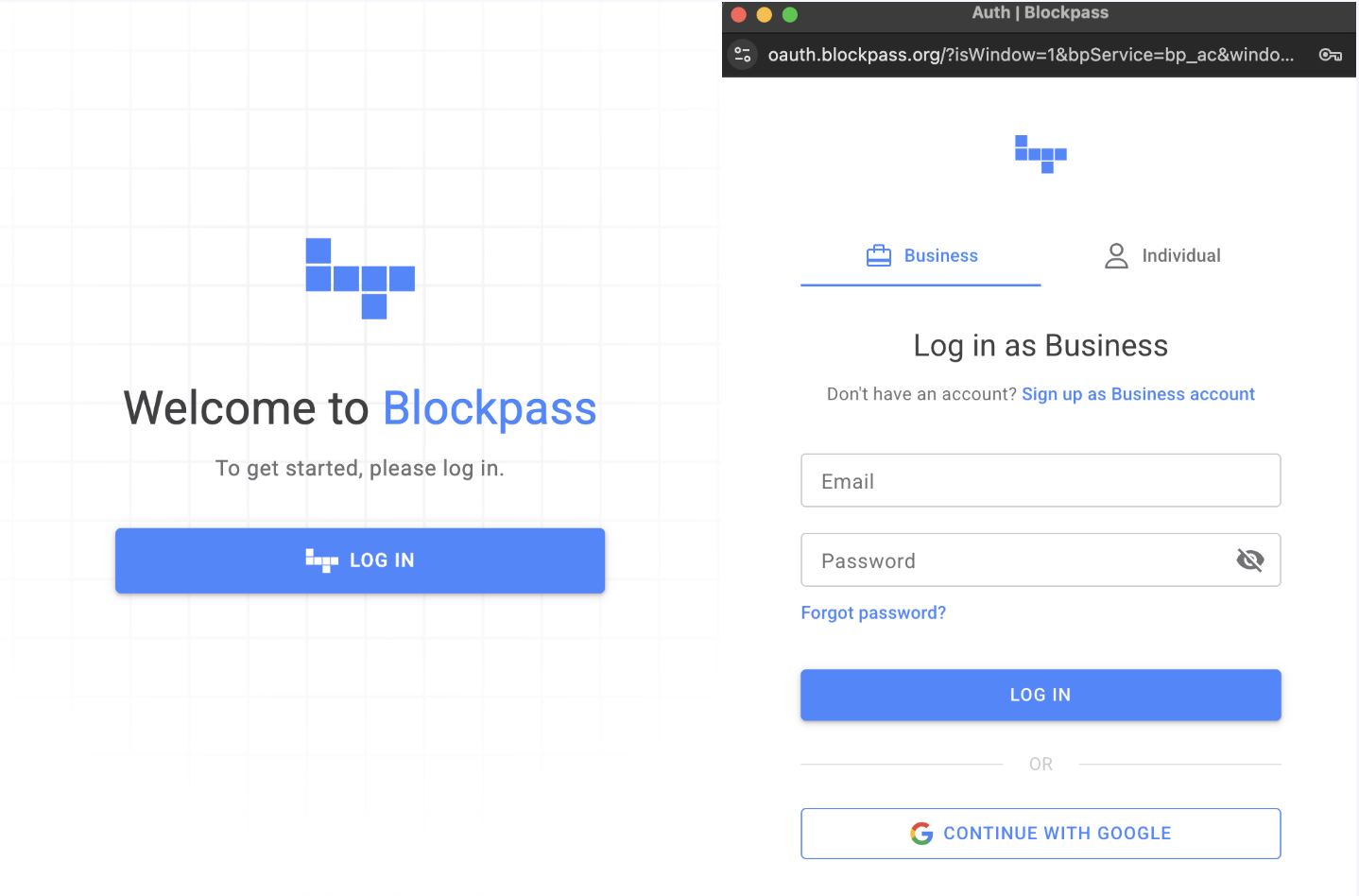
Navigate to console.blockpass.org.
-
Select LOG IN and then click Sign up as a Business account.
-
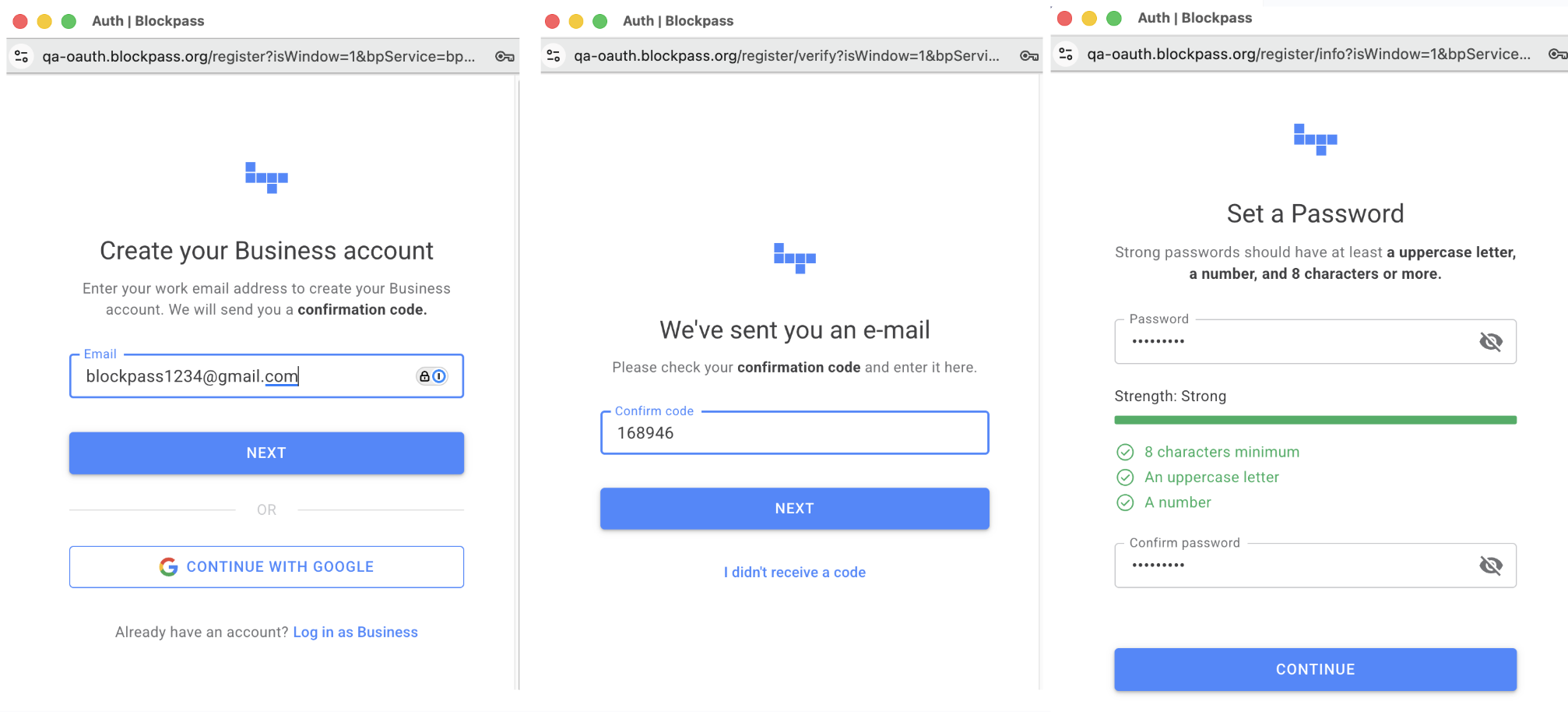
Enter your email and the verification code sent to your inbox.
-
Set a secure password and click CONTINUE.
-
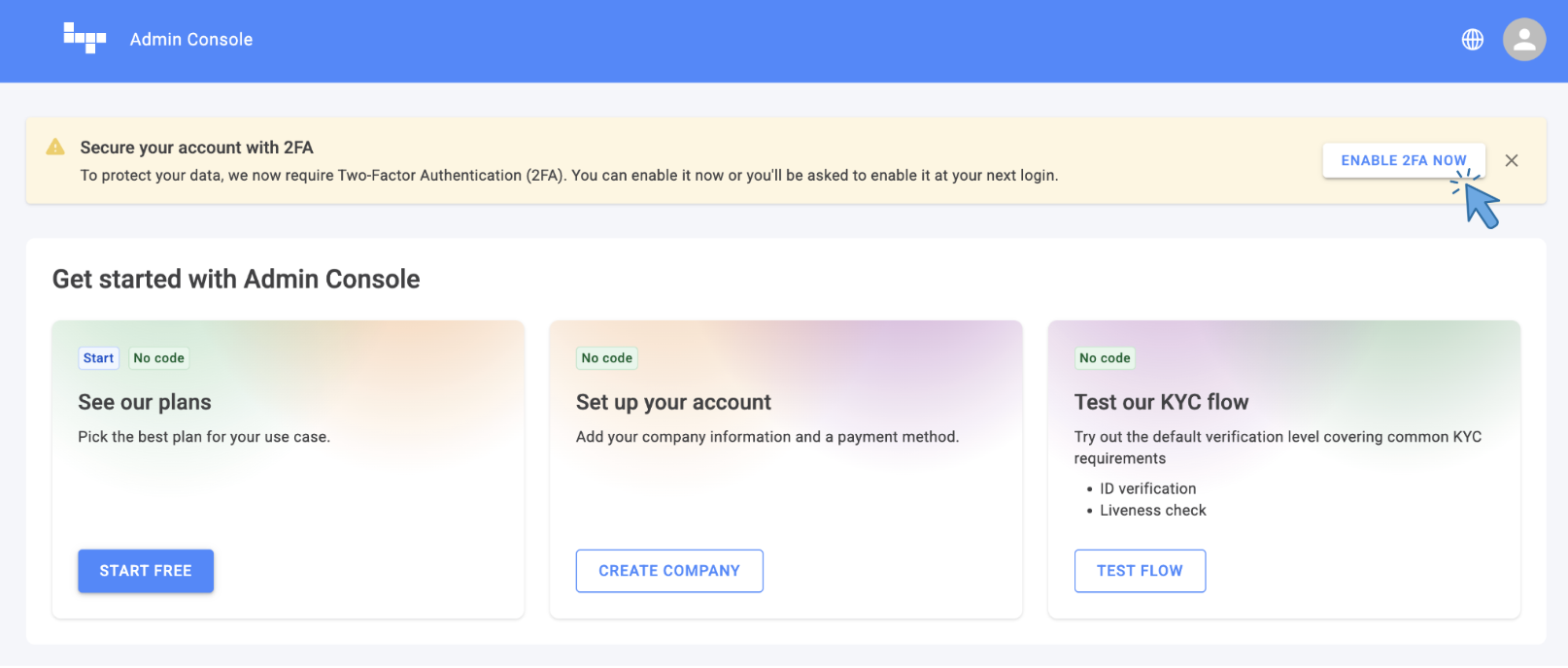
Mandatory: Now that you have a Business Account, enhance your account security by enabling Two-Factor Authentication (2FA). You can find instructions on how to do this here.
Step 2: Start a Free Trial & Select a Plan
Section titled “Step 2: Start a Free Trial & Select a Plan”Blockpass offers various plans based on your expected volume and compliance needs (KYC/KYB).
-
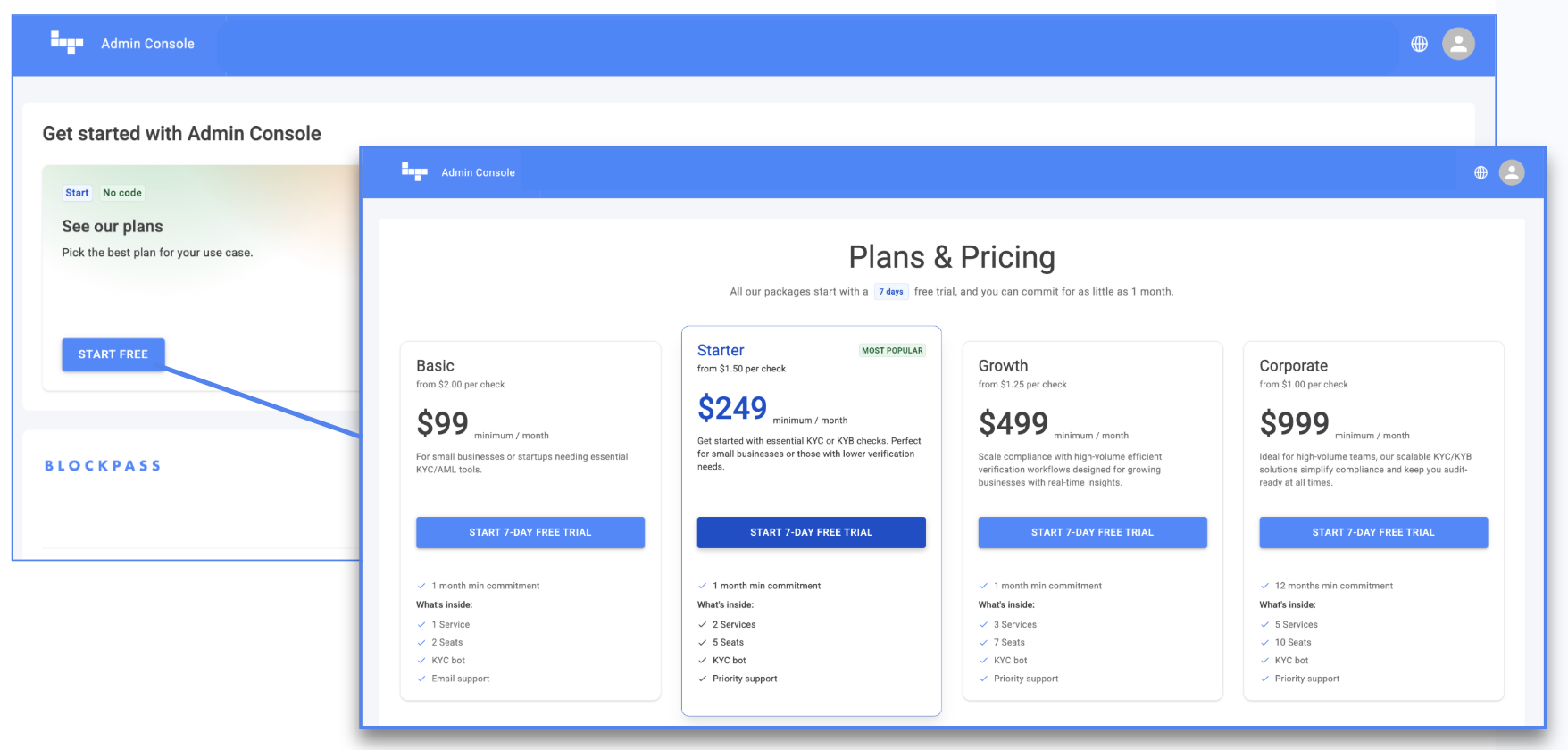
Once logged in, click START FREE to begin your 7-day Free Trial.
-
Review the pricing breakdown for each plan (Basic, Starter, Growth, or Corporate).
-
Pick the plan that best matches your requirements and click START 7-DAY FREE TRIAL.
- Note: You can upgrade or change your plan later if your volume increases.
Step 3: Company Information & Billing
Section titled “Step 3: Company Information & Billing”-
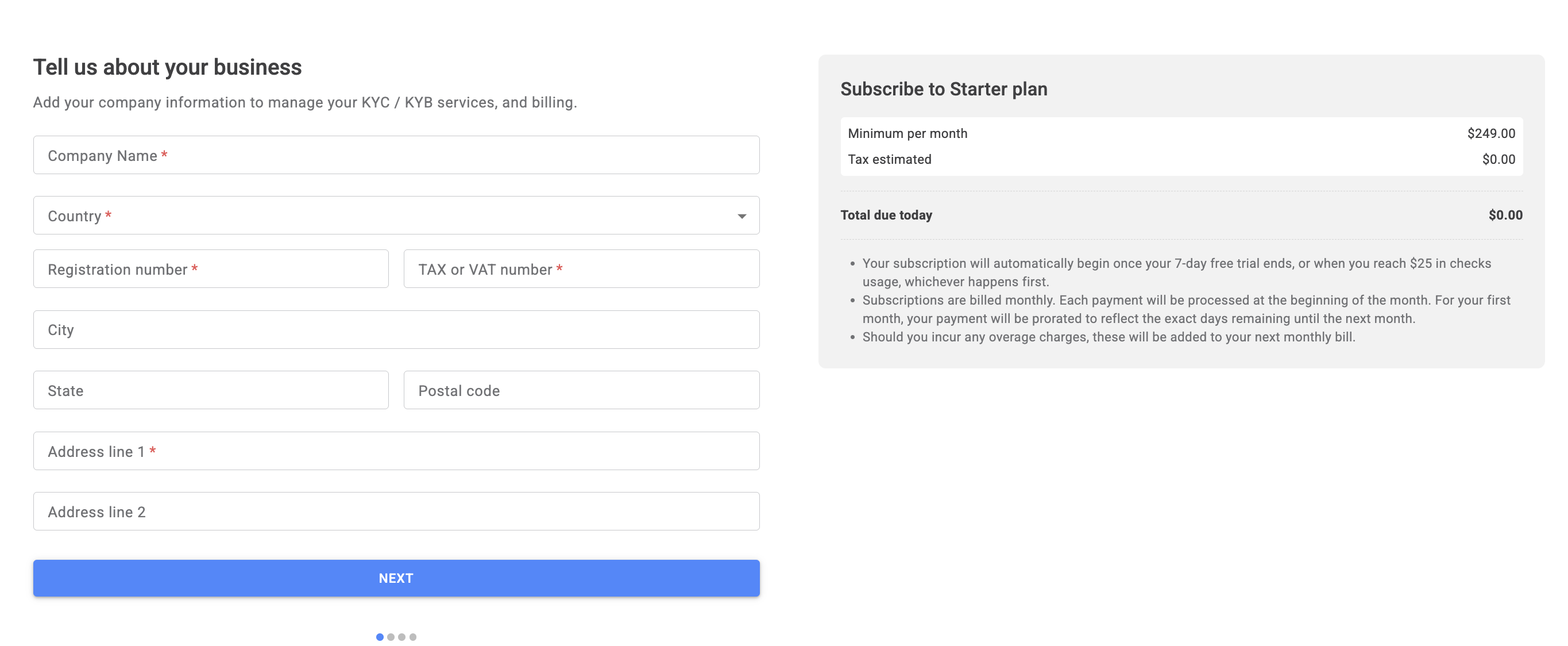
Company Info: Enter your legal company name and registered address.
-
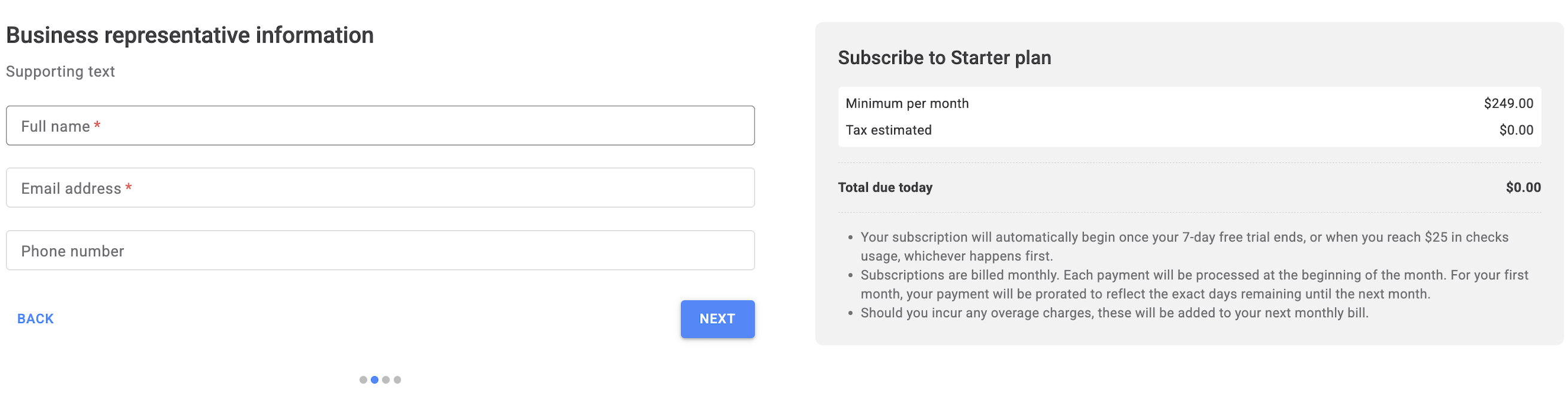
Billing Contact: Provide a valid email for invoices and billing communications.
-
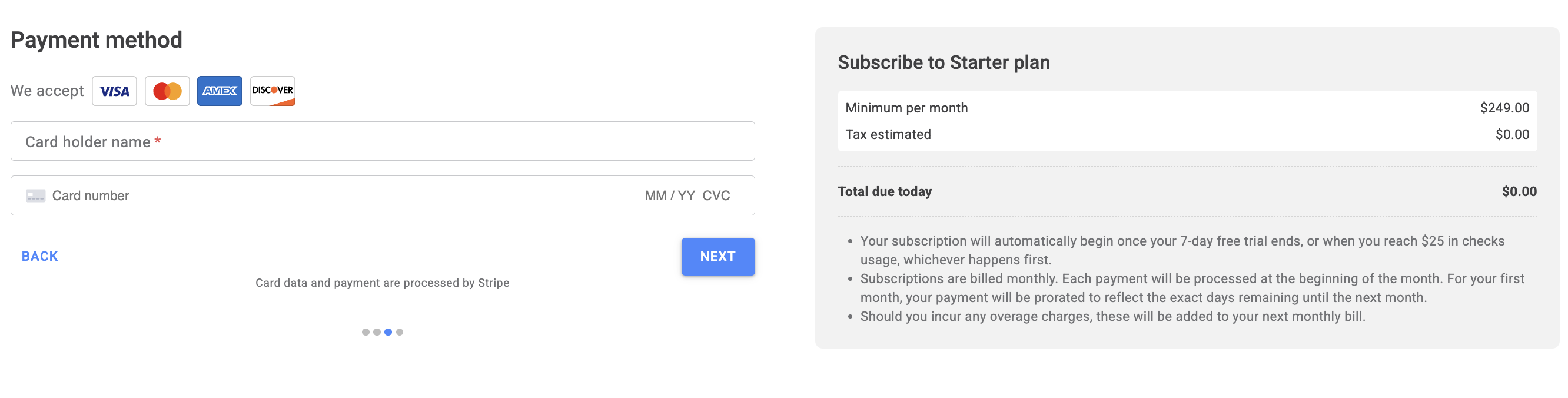
Payment Method: Add a bank card.
Note: A valid card is required to activate the Free Trial and ensure a seamless transition to a paid plan. Enterprise clients may later opt to pay via cryptocurrency by contacting support.
-
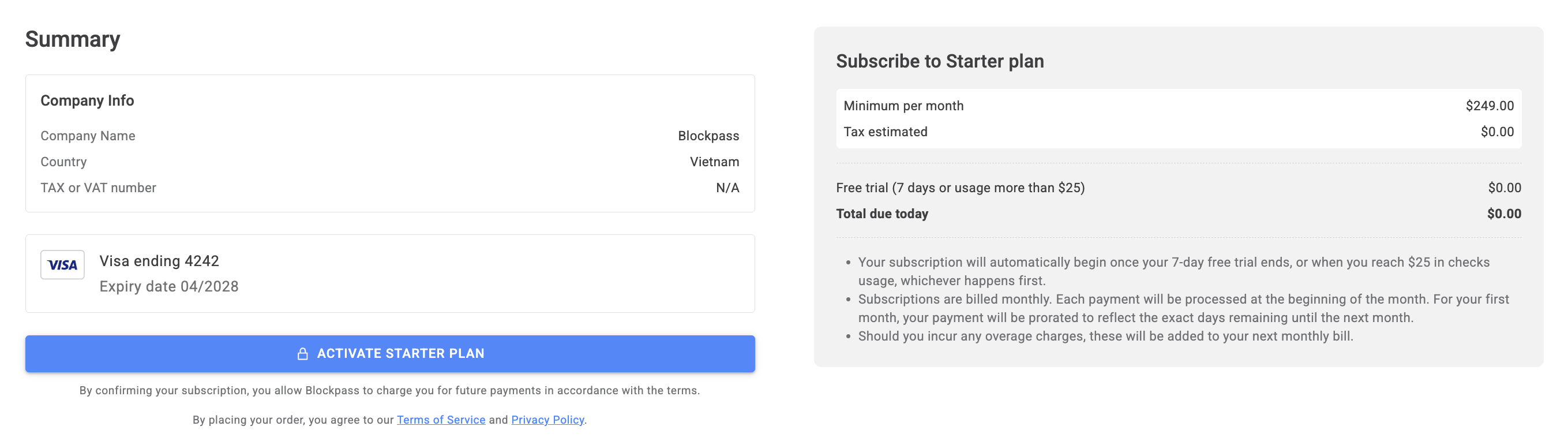
Activate: Review the trial details and subscription start date on the right, then click ACTIVATE (PLAN) NAME.
Step 4: Create Your KYC/ KYB Service
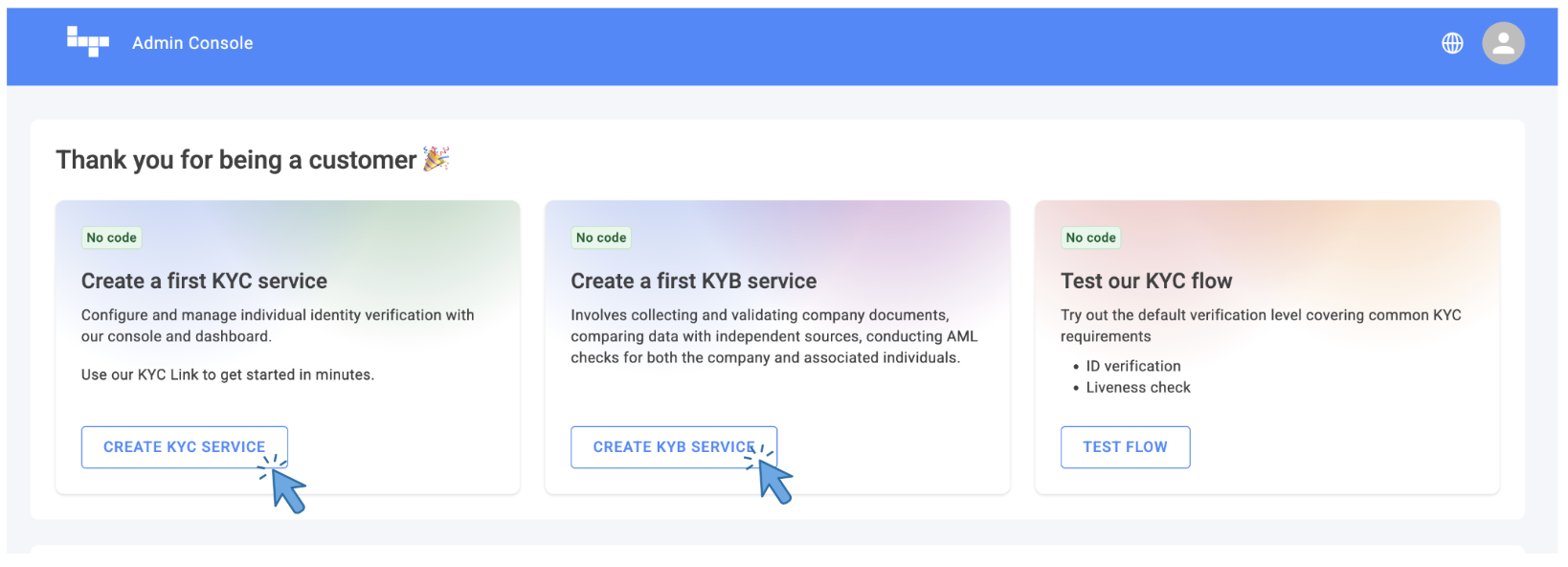
Section titled “Step 4: Create Your KYC/ KYB Service”You can create a KYC or KYB service, whatever you need first.
- Click CREATE KYC SERVICE (for individuals) or CREATE KYB SERVICE (for businesses).
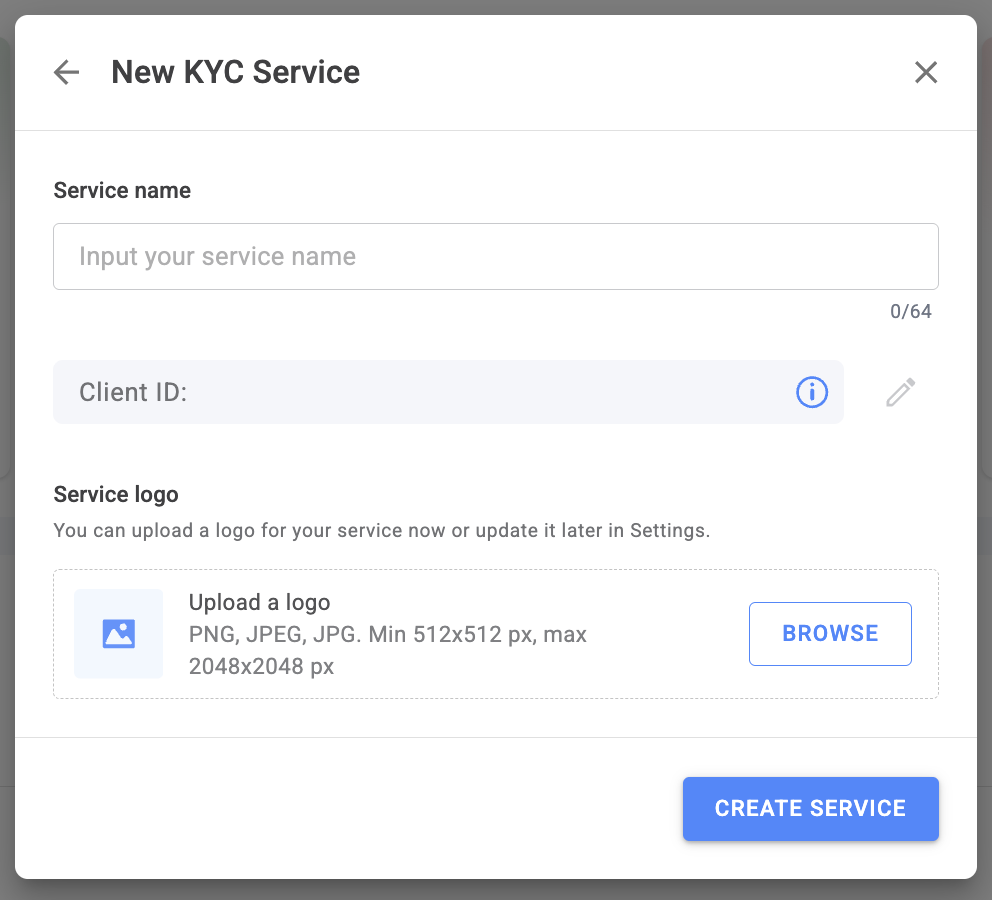
- Service Name: Enter a name that your users will recognize (e.g., “YourBrand Onboarding”).
- ClientID: A unique ID is auto-generated, but you can customize it to match your internal naming conventions.
- Branding: (Optional) Upload your company logo to provide a familiar experience for your users.
- Click CREATE SERVICE.
Step 5: Configuration & Launch
Section titled “Step 5: Configuration & Launch”The final step is tailoring the verification rules to your legal requirements.
- Enable Checks: Go to the Configuration tab to toggle specific checks (e.g., AML, Proof of Address, or Liveness) ON or OFF. Visit this article for the detailed instructions.
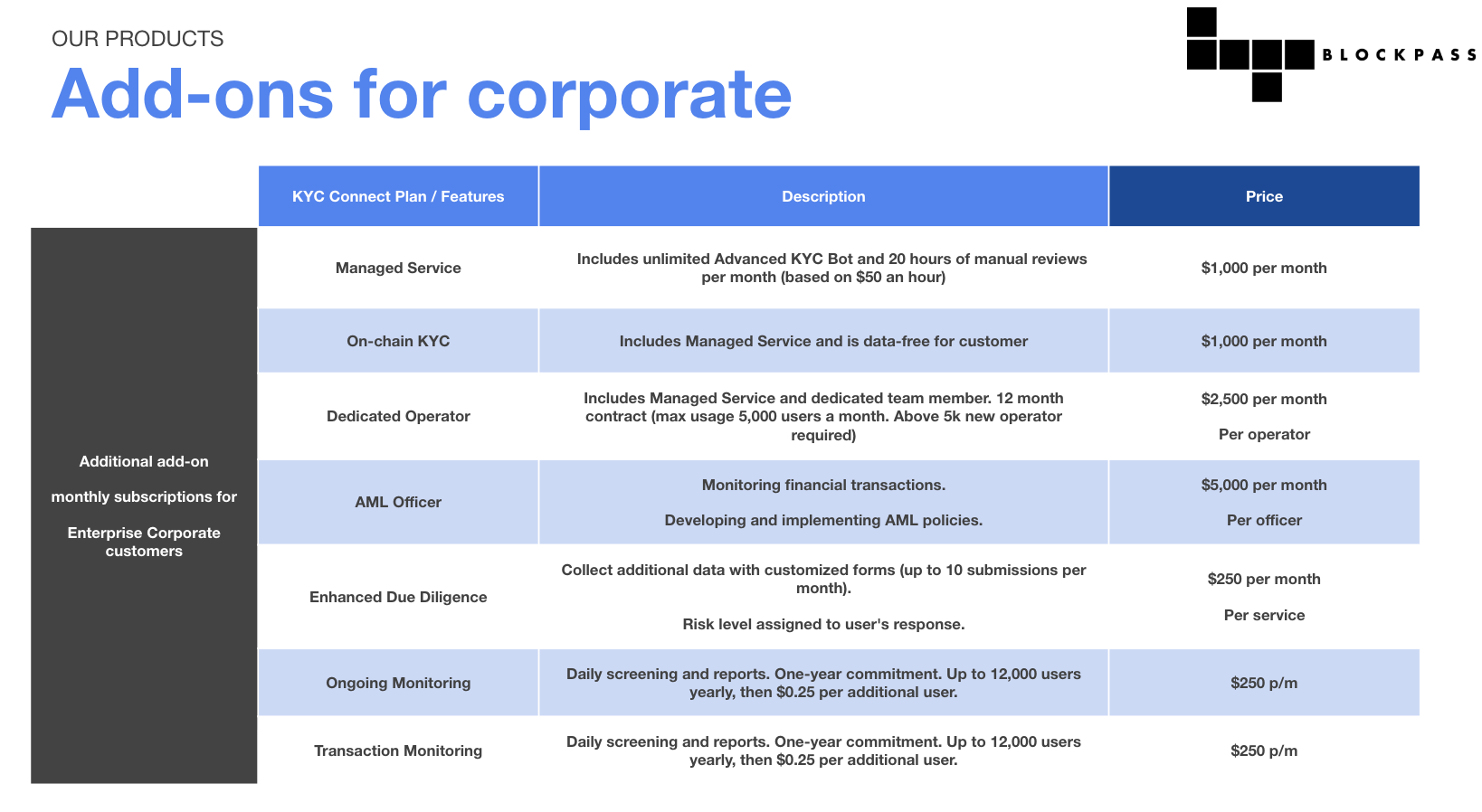
- Add-ons: If you are on an Enterprise Corporate plan, contact [email protected] to enable advanced features like Managed Service, On-chain KYC, Enhanced Due Diligence, etc.
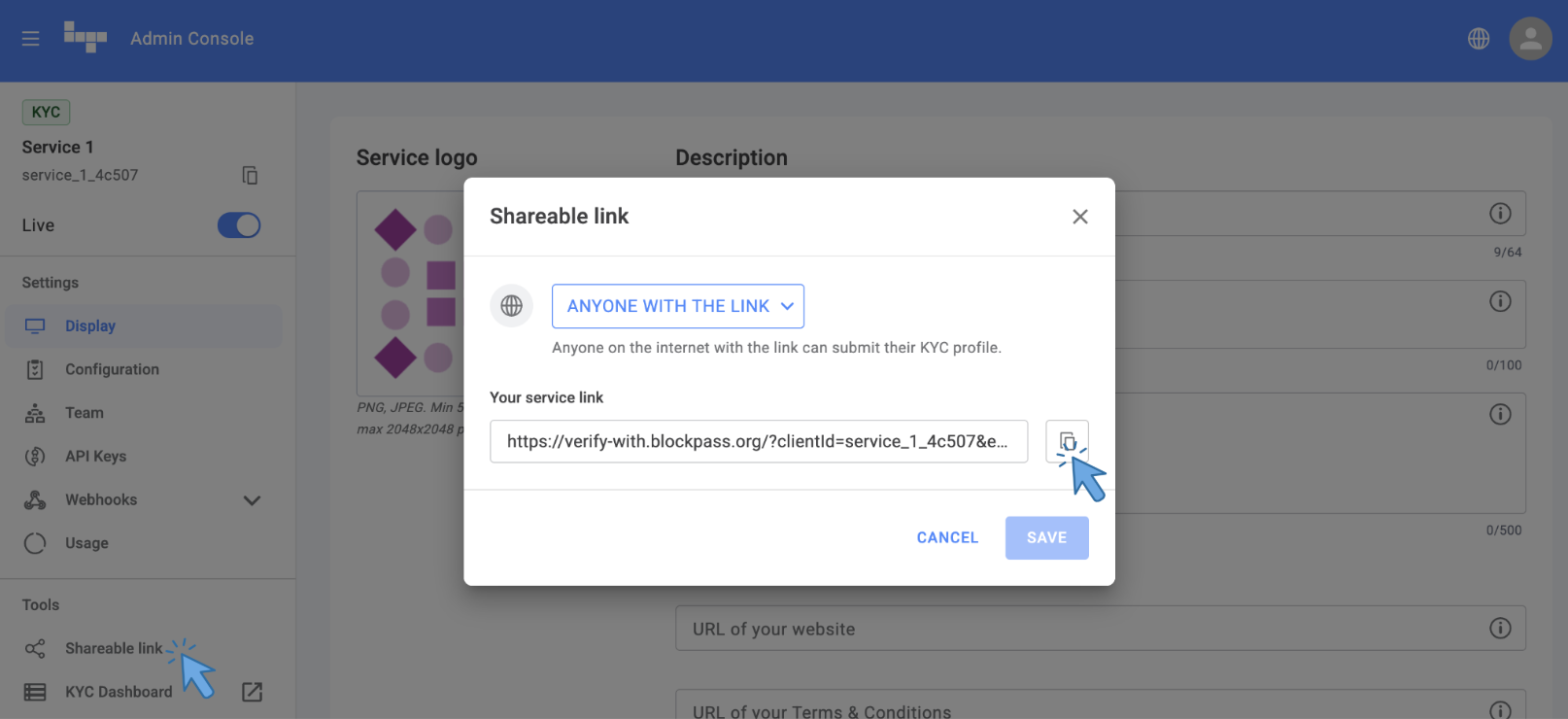
- Launch: Access your Shareable Link within the Console to begin onboarding users immediately.
- Monitor: All incoming user data can be reviewed in real-time at kyc.blockpass.org. You can also access it by navigating to the KYC Dashboard tab in the Console.