

Managing Profile Assignments in Your Service Dashboard
This article explains how to assign profiles to yourself or other operators and filter profiles based on your assignment status.
Assigning Profiles
Section titled “Assigning Profiles”- Assigning to Yourself:
When you begin reviewing a profile, you can assign it to yourself to start the verification process.
- Assigning to Another Operator:
There are situations where you might need to assign a profile to another operator, such as:
-
- Shift changes: If multiple operators cover different shifts, you can assign profiles to the operator currently on duty.
- Escalation: If a profile requires review by a senior manager, you can assign it to them for further action.
How to Assign:
Section titled “How to Assign:”- Open the profile’s detailed view.
- Locate the
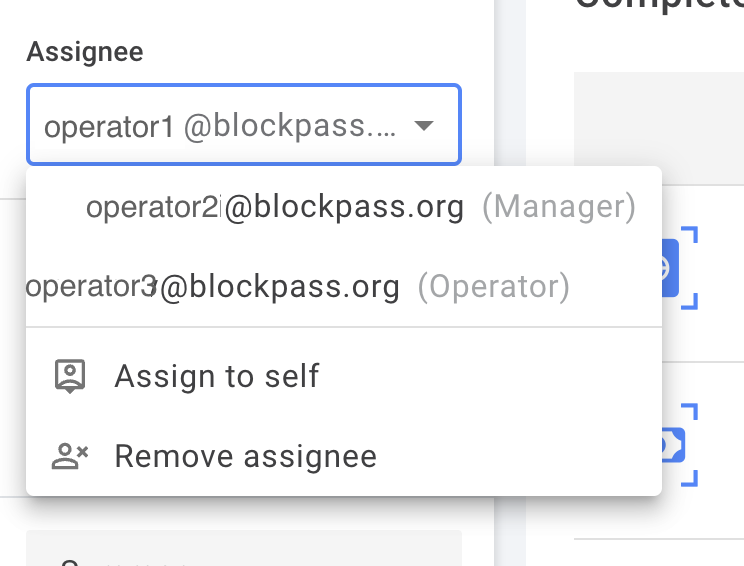
Assigneesection (see screenshot below for reference). - Use the drop-down menu to select the desired operator.
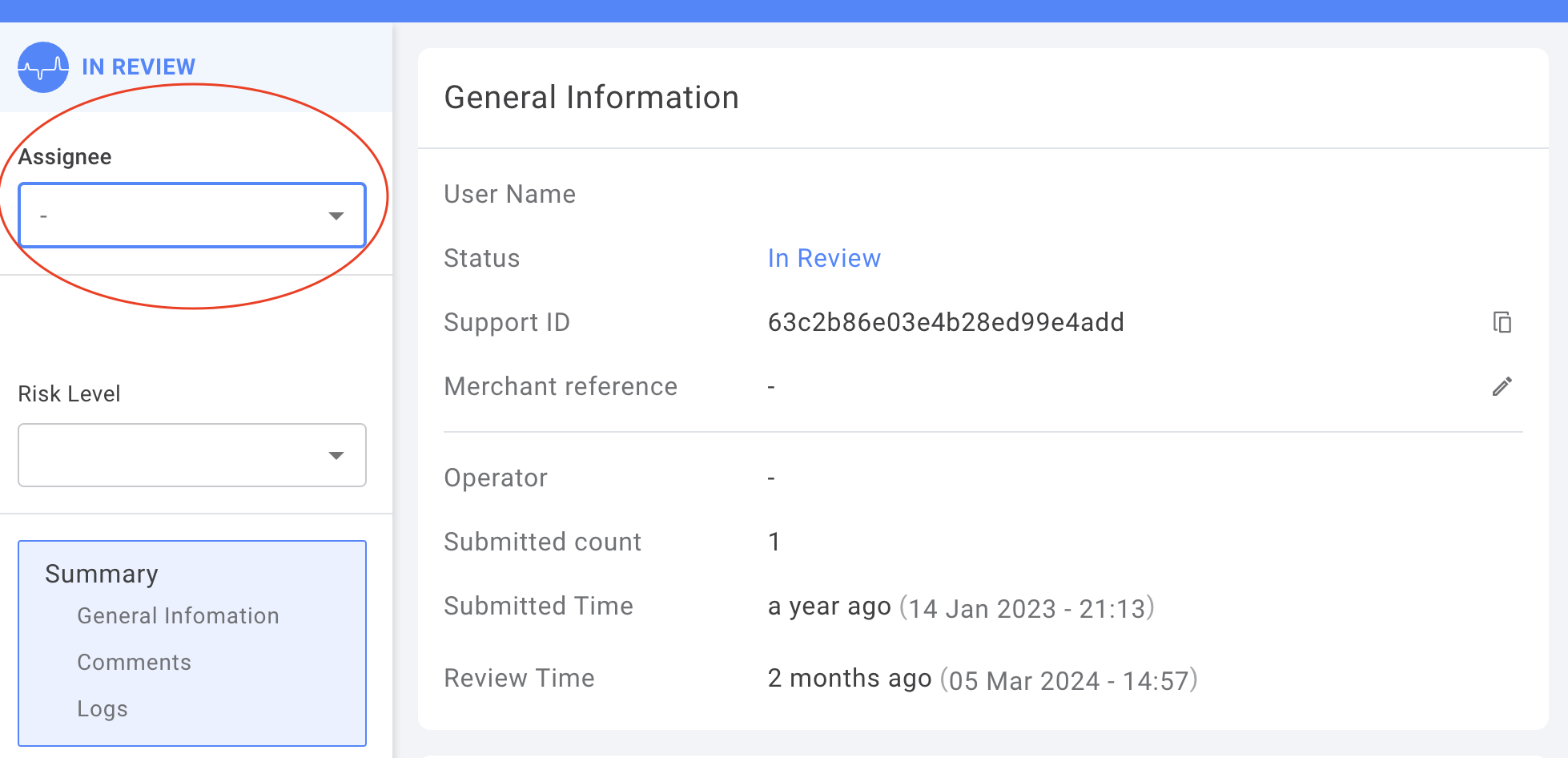
- You can also transfer a profile you are currently assigned back to the general pool ‘Remove assignee’.
- You can assign a profile currently assigned to another operator to yourself using the
Assign to selfoption.
Filtering Assigned Profiles
Section titled “Filtering Assigned Profiles”Since you are not notified when a profile is assigned to you, this section explains how to filter for profiles requiring your review.
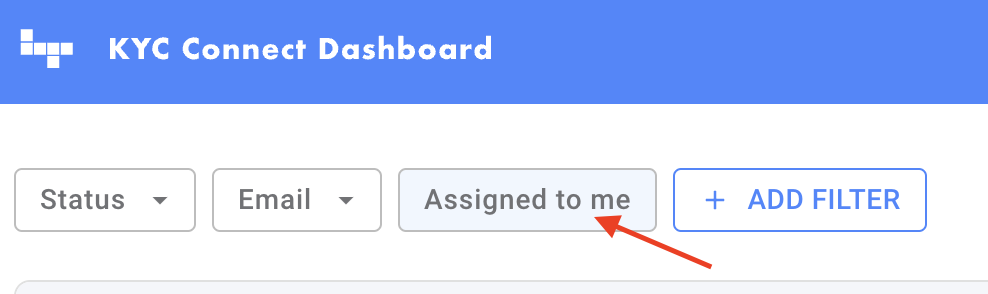
You can use Quick Filter to find a list of profiles assigned to you by:
- Step 1: Log in to kyc.blockpass.org.
- Step 2: Open the relevant service.
- Step 3: In the top left corner of the dashboard, click
Assigned to me
Filter with a particular status
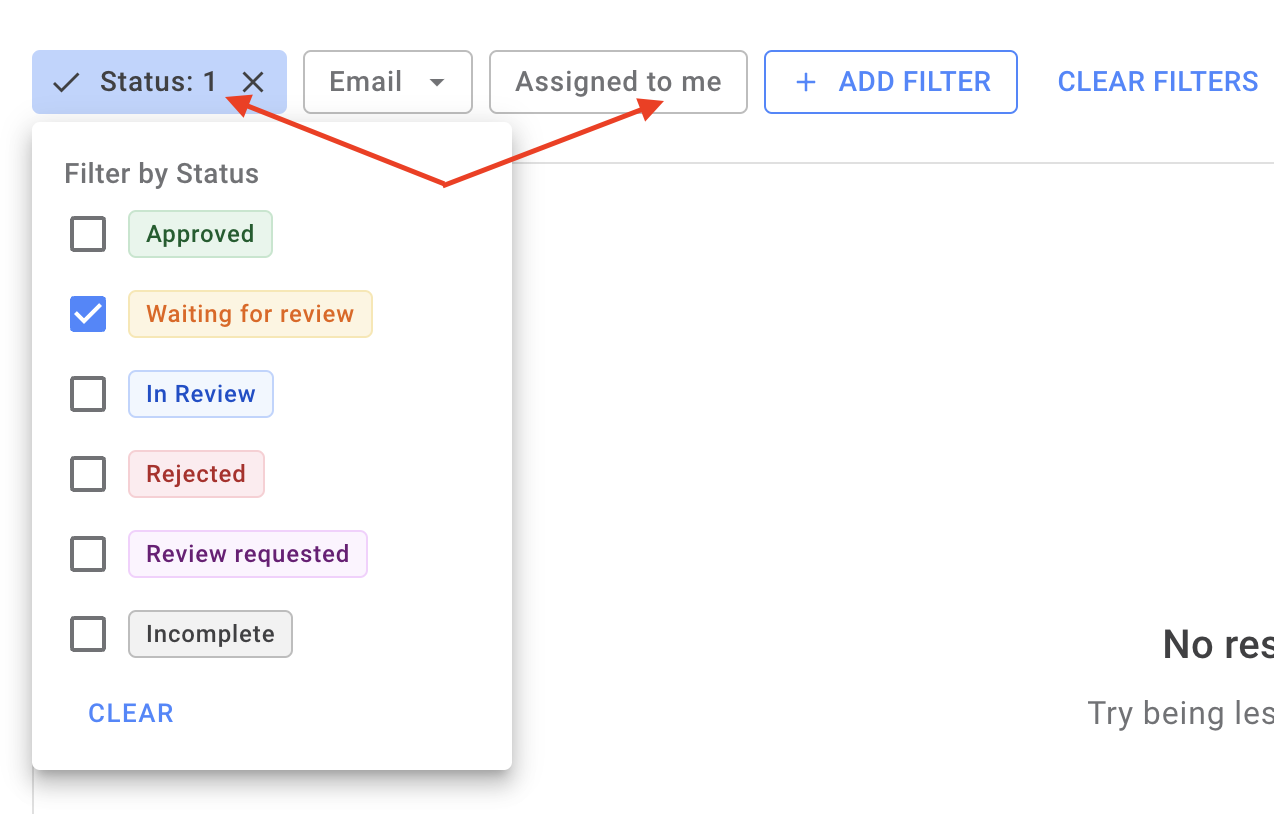
Section titled “Filter with a particular status”- Use the filter located in the upper-left corner of the screen:
- Select a desired status under the
Statuscategory - Click
Assigned to me
- Select a desired status under the
This guide should help you manage profile assignments and stay on top of your workload within the platform.