Admin Console: Service Management & KYB Access
This guide provides instructions on navigating your services, managing the KYB (Know Your Business) section, and handling team permissions.
1. Accessing the KYB Service Section
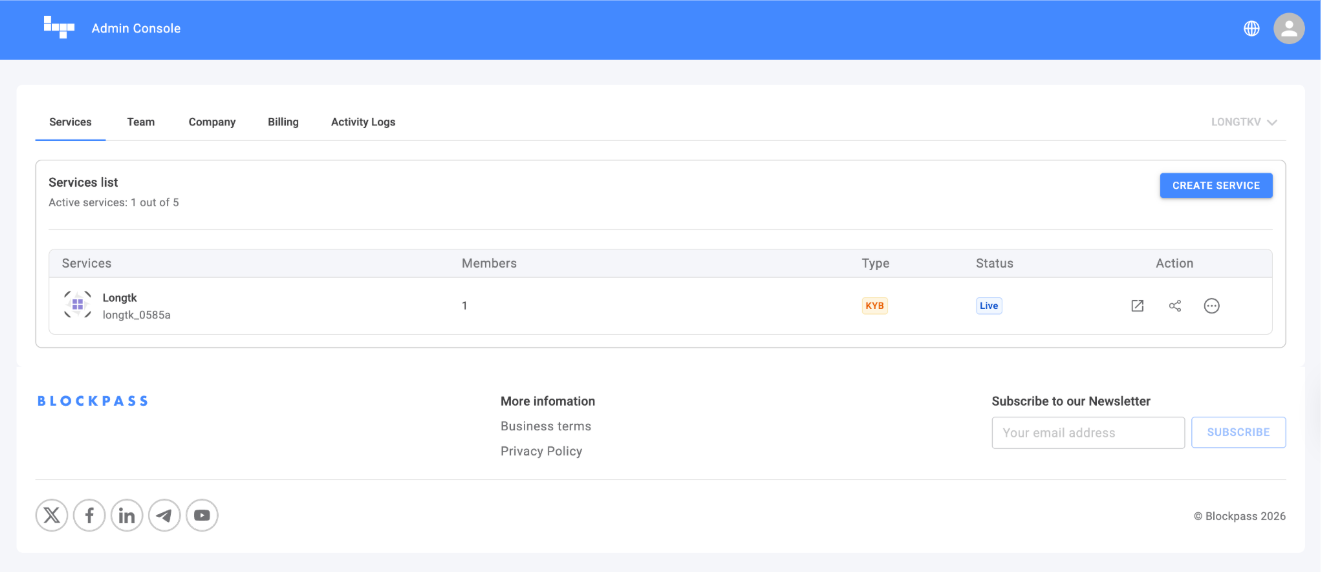
Section titled “1. Accessing the KYB Service Section”To manage your corporate verification services, log in to the Admin Console
In this view, you can manage your active services. Each entry displays:
- Service Logo & Name: The visual identity of your service.
- Client ID: A unique identifier generated at creation (cannot be modified).
- Status: All services are set to Active by default.
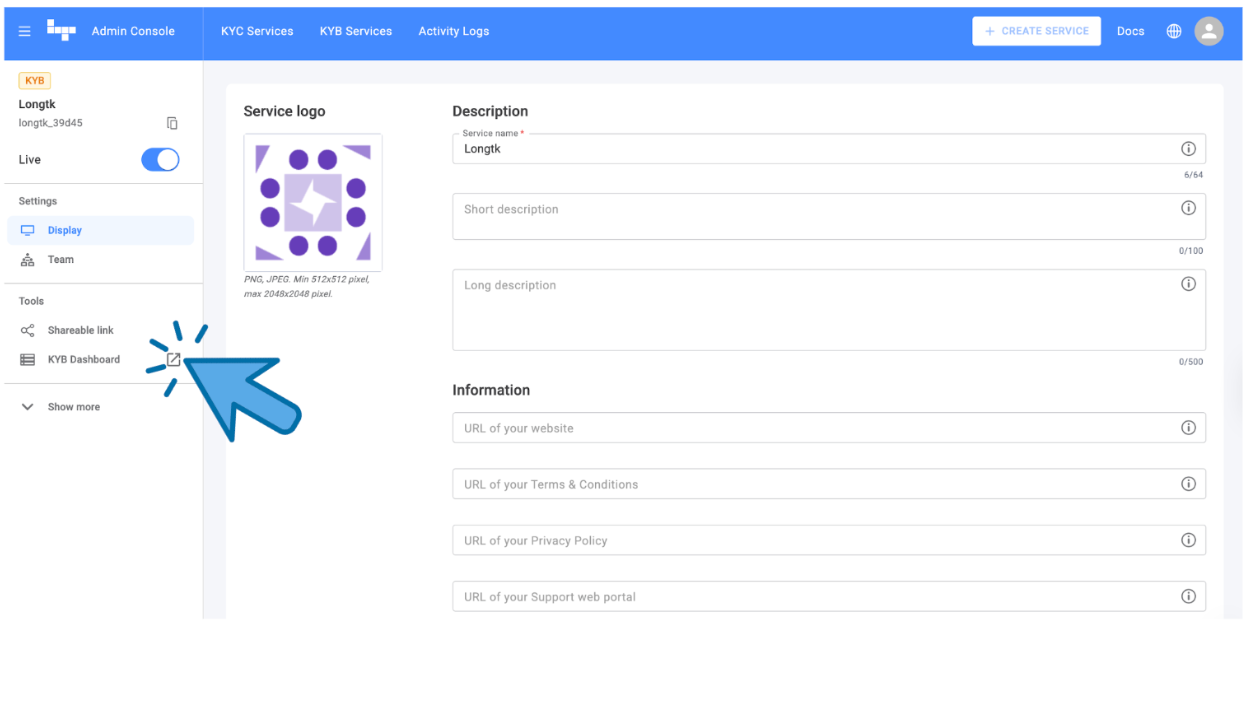
- Dashboard Icon (
 ): Provides direct access to the specific KYB data dashboard.
 - Shareable Link Icon (
 ): Click this to copy the public KYB form link. This link is to share with your business users to submit their corporate information.
2. Managing a Specific KYB Service
Section titled “2. Managing a Specific KYB Service”To update a service, click on its row in the list. You will find the following management tabs:
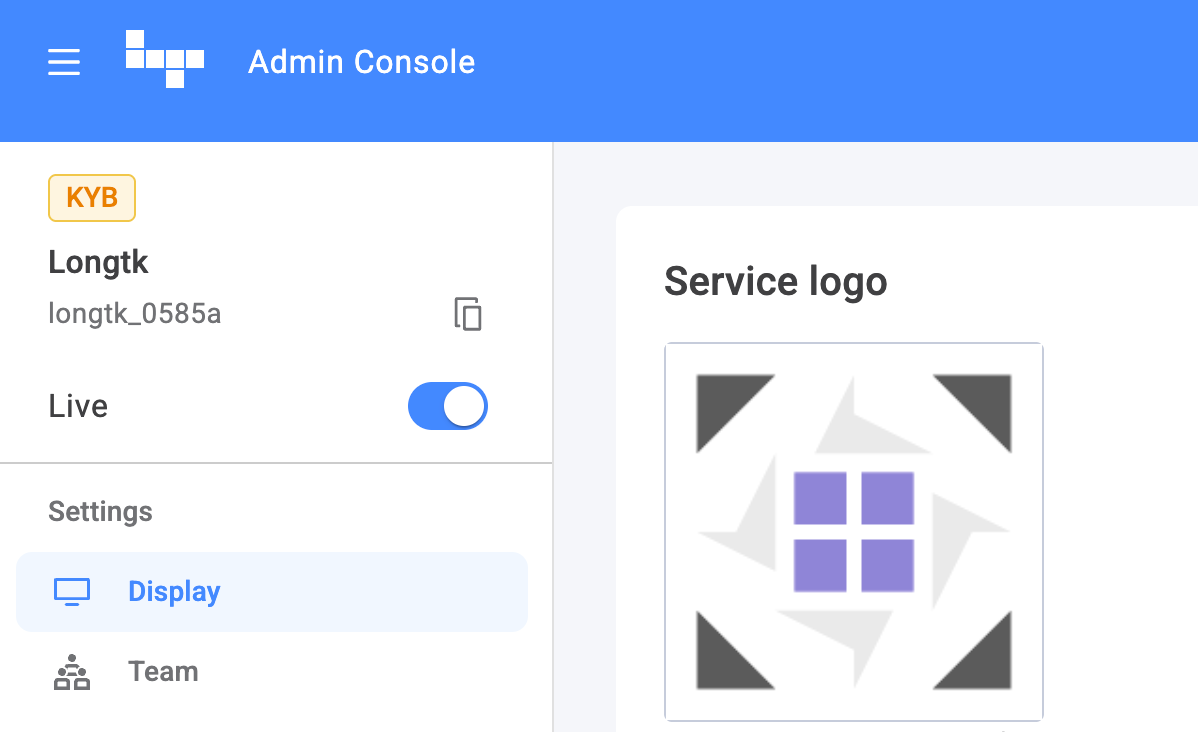
Live Button
Section titled “Live Button”KYB service can now be enabled and disabled. Merchants can now activate and deactivate KYB (Know Your Business) services directly from the Admin Console.
Display Tab
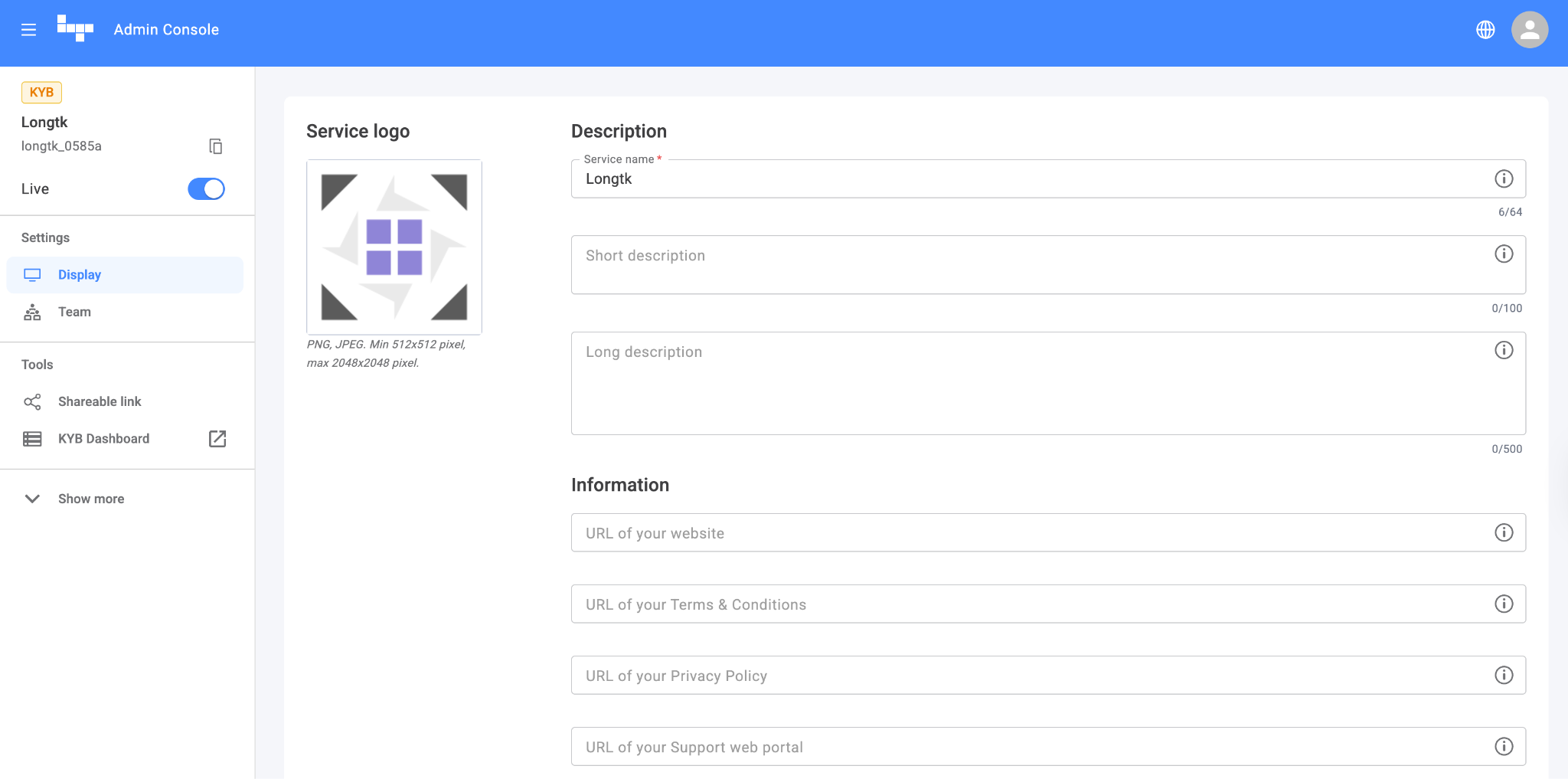
Section titled “Display Tab”Use this section to customize your service’s public appearance.
- Actions: Modify the service name, service information, or upload a new Logo.
- Note: You must click SAVE at the bottom of the page to apply changes.
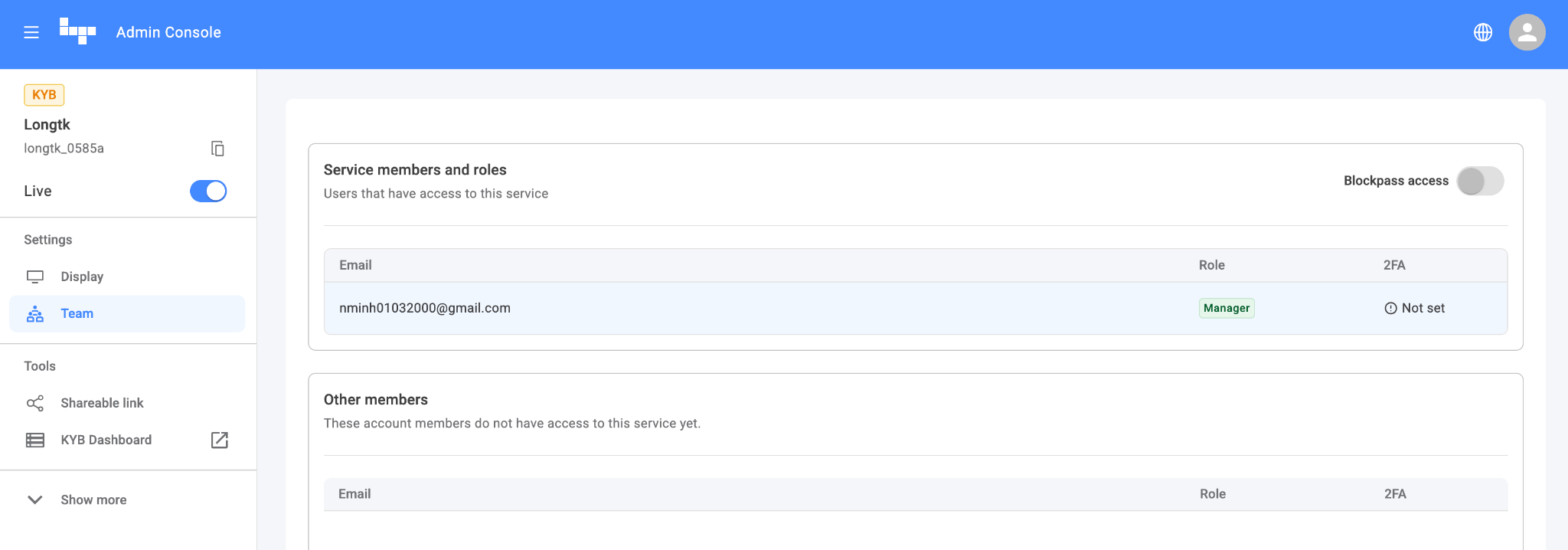
Team Tab
Section titled “Team Tab”Displays all members currently invited to the KYB service. Our KYB services currently support only the Manager role.
For more information about managing team members within a KYB service, visit Admin Console: Team Roles & Access
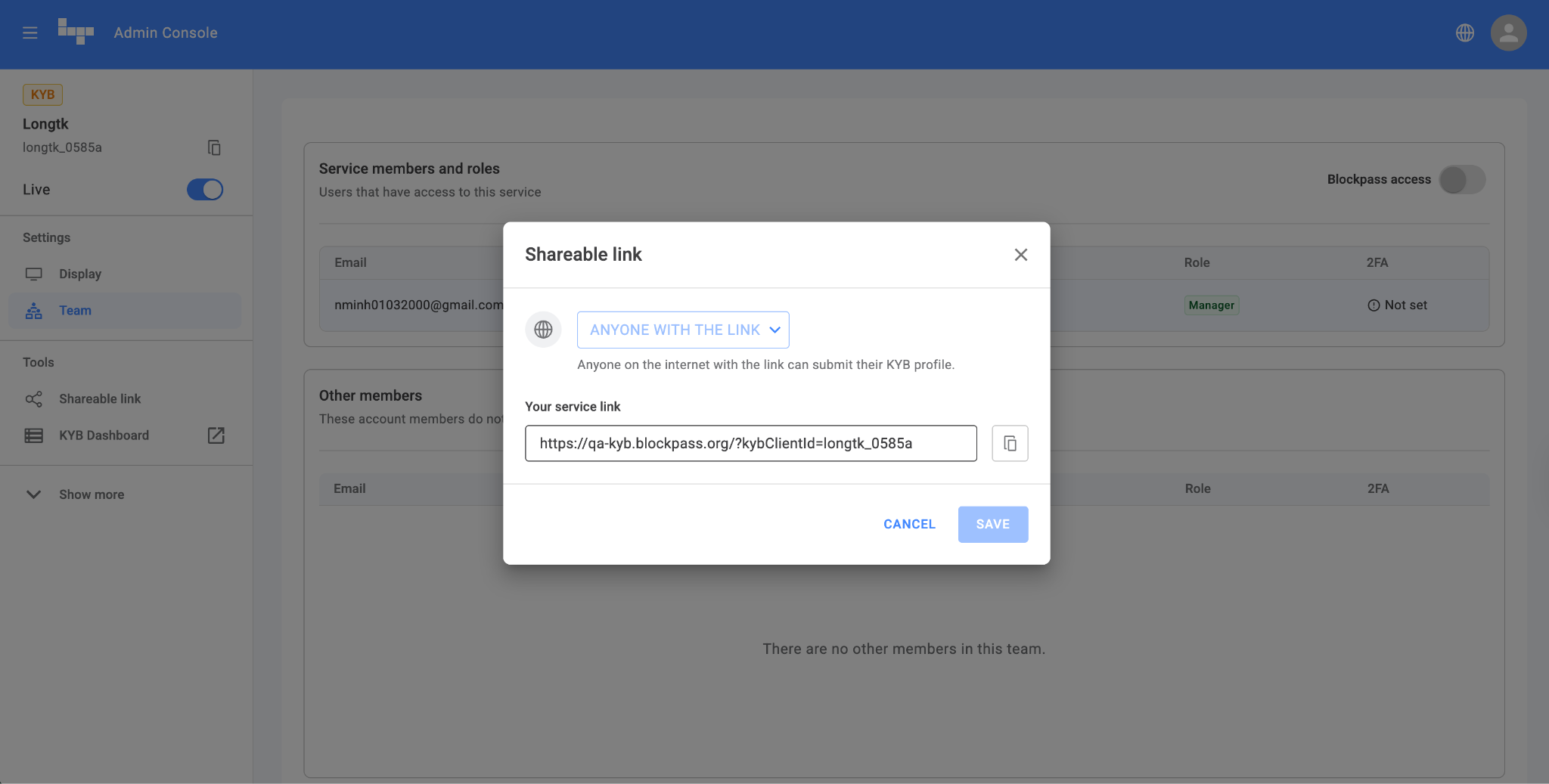
Shareable Link Tab
Section titled “Shareable Link Tab”This tab provides the permanent URL for your Business Users. This link remains consistent for the life of the service, making it easy to embed in your website or emails.
KYB Dashboard
Section titled “KYB Dashboard”Click here to access Business User data and real-time verification statuses. For an overview of the KYB Dashboard, please refer to this article.
4. Unsupported Features (KYB vs. KYC)
Section titled “4. Unsupported Features (KYB vs. KYC)”Unlike the KYC service for individuals, the following features are currently not supported for the KYB service:
- Custom Configuration: Blockpass uses a standardized KYB form for all customers to ensure consistency.
- For additional requests (e.g., Crypto AML checks or EDD), please contact [email protected].
- API & Webhooks: Automated data retrieval via API or real-time Webhook notifications is not supported.
- Customers must access the KYB Dashboard directly to view data and statuses.
5. Consolidated KYC & KYB Link
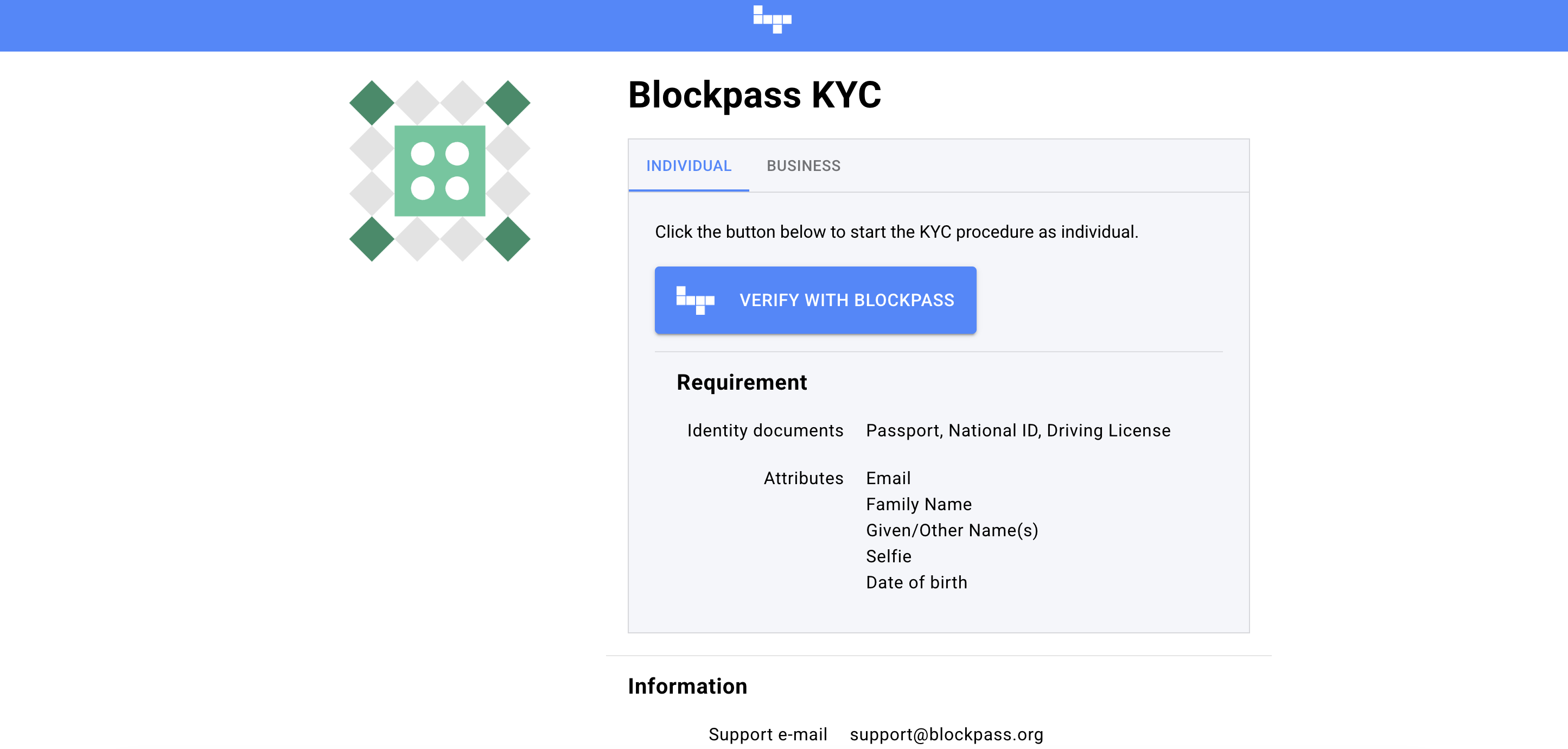
Section titled “5. Consolidated KYC & KYB Link”To simplify the user experience, Blockpass can consolidate your KYB and KYC links. This allows you to use a single link to share with both individual and business users.
- How it works: Once consolidated, the single link will be identical to the KYC link found in your Admin Console.
- Setup: To request link consolidation, please contact our team at [email protected].