

Dashboard Overview
What is a dashboard?
Section titled “What is a dashboard?”The service dashboard serves as a comprehensive platform through which clients gain visibility into user profiles, facilitating seamless KYC (Know Your Customer) verification processes. Each distinct service offered by Blockpass KYC is seamlessly integrated with its respective dashboard, ensuring efficient management and oversight. Within this interface, operators possess the capability to meticulously review and process user profiles, thereby enabling meticulous adherence to regulatory standards and operational protocols.
How to access the dashboard?
Section titled “How to access the dashboard?”There are 3 ways to access the dashboard:
-
Directly login to kyc.blockpass.org using your Blockpass account credentials.
-
Log in to console.blockpass.org. In the service list, click
 to access the dashboard.

-
Log in to console.blockpass.org. Open the service you want to access the dashboard, then click
 to open it.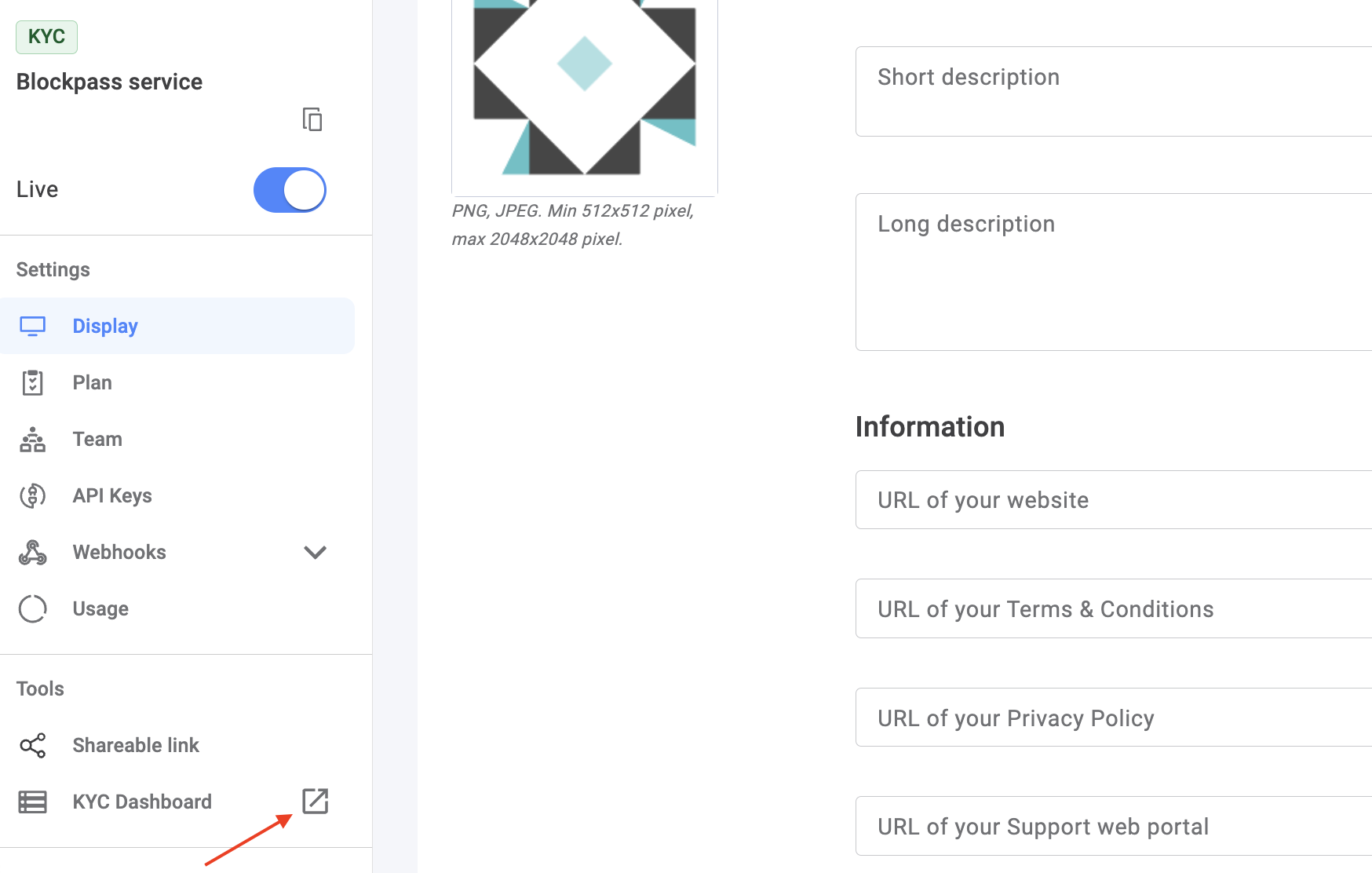
The KYC dashboard displays all profiles submitted to your service and their KYC statuses.
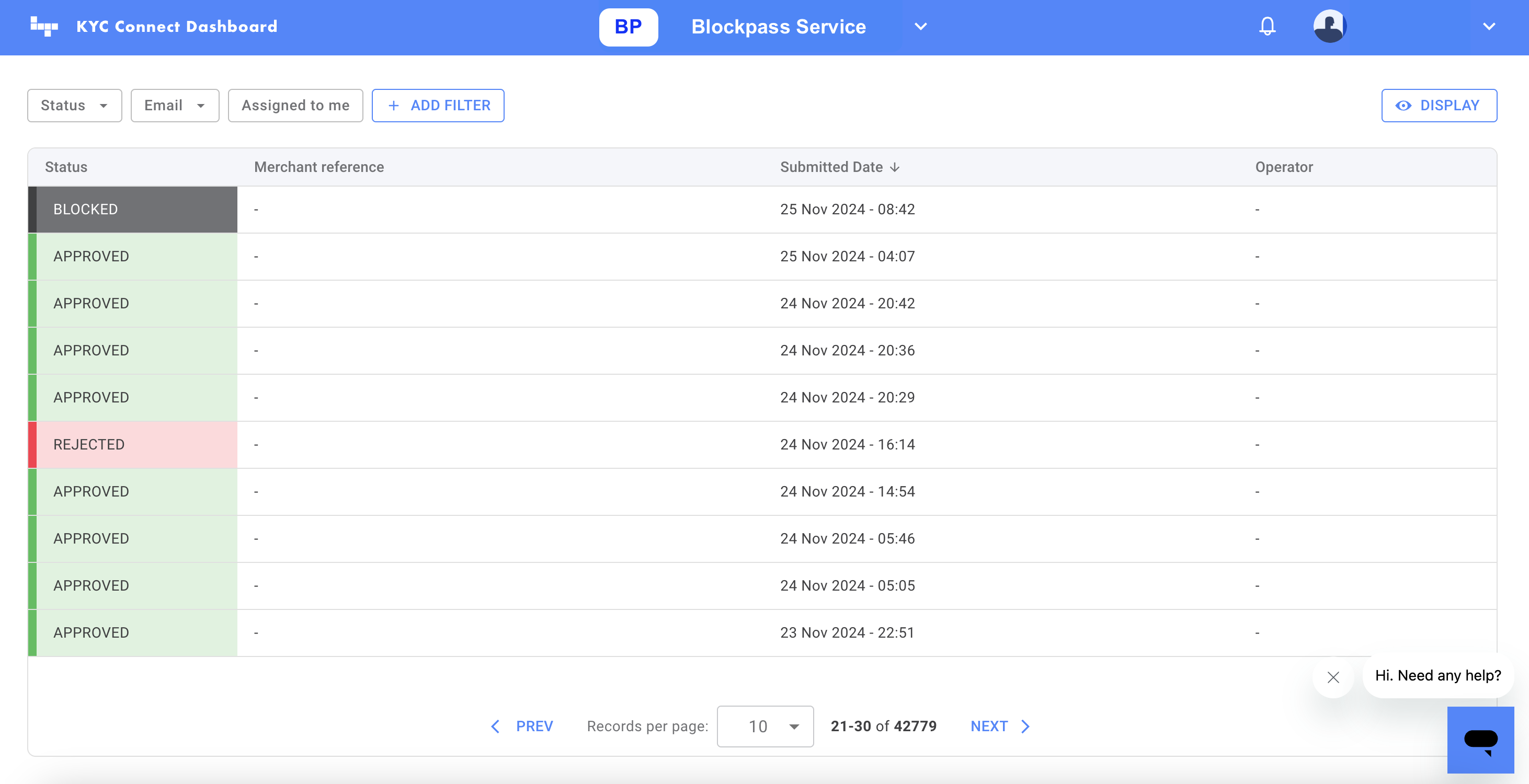
View Options
Section titled “View Options”Filter
Section titled “Filter”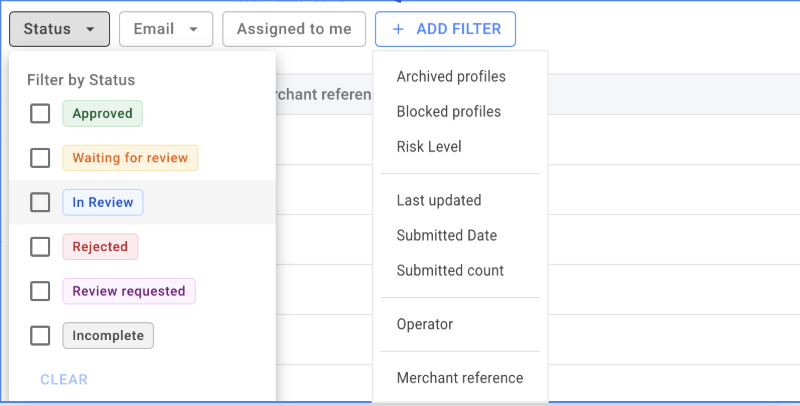
The top panel of the list view offers KYC operators filtering tools. You can easily narrow down profiles by using filters like name, date of birth, profile status, and other important details. Just click on each filter to choose from predefined options or create your own custom search. You can even combine multiple filters to get more specific results. And if you need to change your search, you can easily remove or adjust any filters.
Display Columns
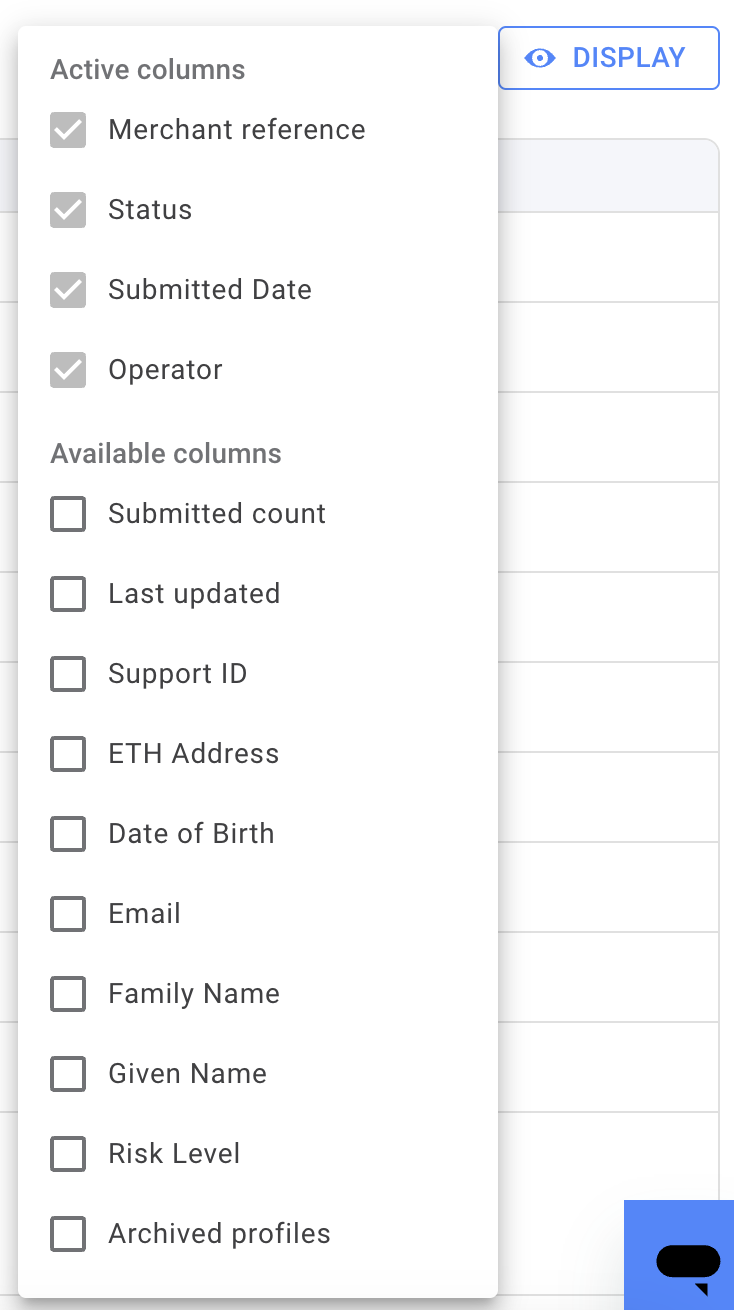
Section titled “Display Columns”Display columns allow you to hide or display specific profile information, such as Full Name, Date of Birth, and other key details. You can manage which columns are visible by using the drop-down menu in the “Display Columns” section. Simply check or uncheck the options to show or hide the desired information.
The sort order of profiles can be adjusted using the up and down arrows located to the right of each column name in the list view. A commonly used field for sorting is the “Submitted Date” column, allowing operators to view submissions in either ascending (oldest to newest) or descending (newest to oldest) order.

Records Per Page Settings
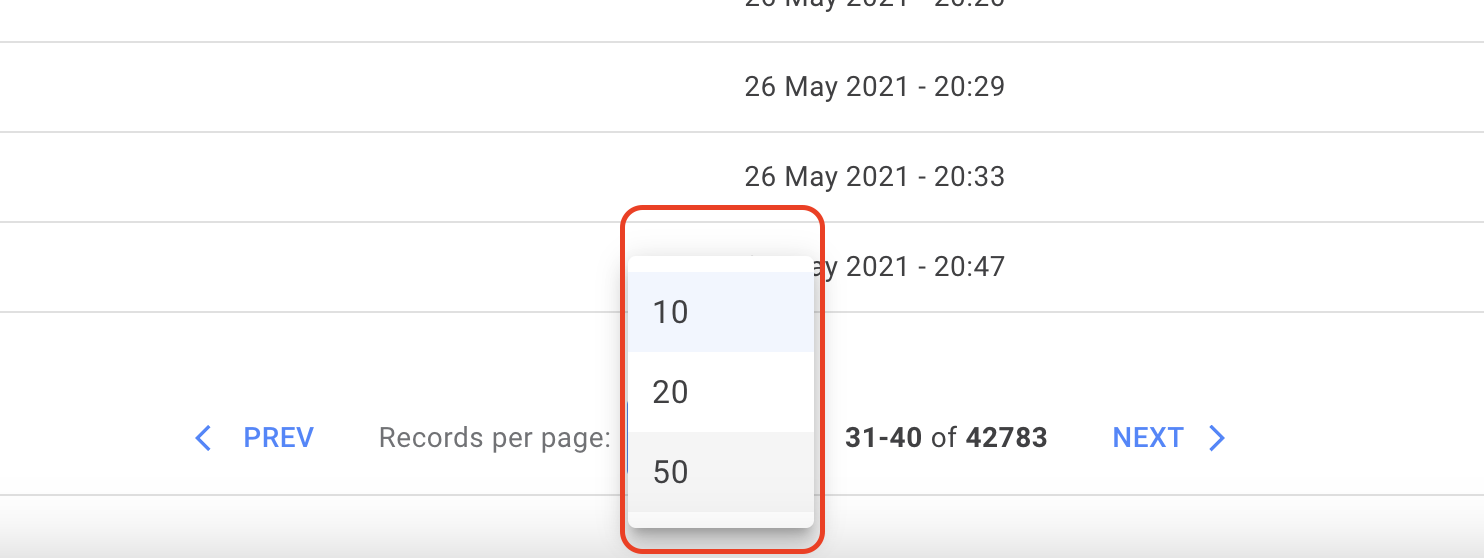
Section titled “Records Per Page Settings”The default setting displays 10 records per page to minimize scrolling for services with high usage volumes. However, operators can adjust this setting to display either 10, 20, or 50 records per page, based on their preference.
Dashboard Settings
Section titled “Dashboard Settings”The dashboard Settings section allows the operator to conduct some basic settings, including editing the messages sent to users and the view layout or risk label. Visit Dashboard Settings: Status Messages and Reviewer Messages for the details
User Profile Accessing
Section titled “User Profile Accessing”Clicking on a specific profile in the profile list will take the KYC operator to the profile details view, which shows all the user’s submitted identity information. The KYC operator can then commence a review of the profile. For more details about a profile, visit Exploring the User Profile in the Dashboard