

How to Send Reminders and Manage Reminder Settings
The reminder system enables you to send reminders to users who haven’t logged in recently to update their profiles. You can also customize the number of reminders sent and the message content to suit your needs.
Sending a Reminder
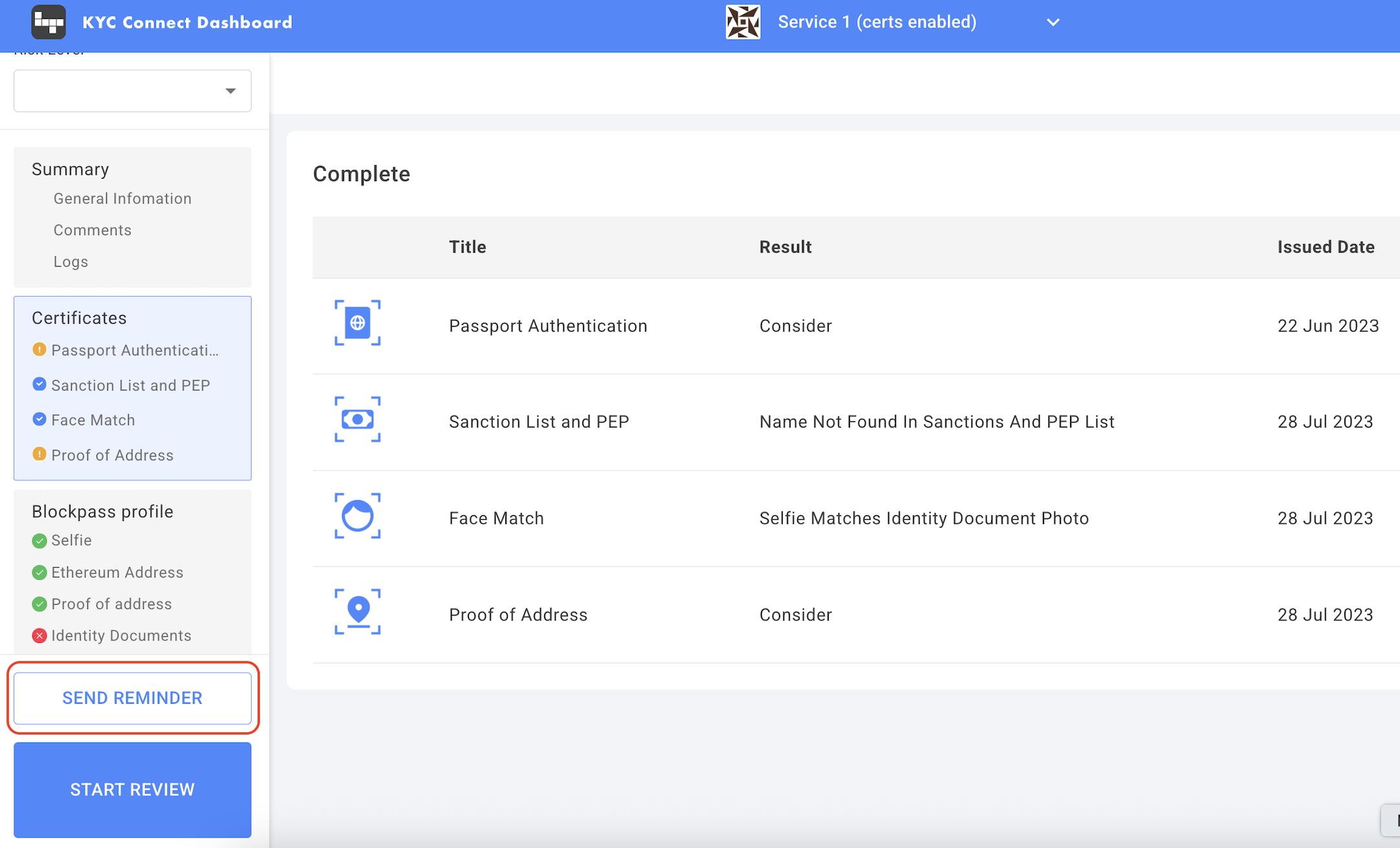
Section titled “Sending a Reminder”The “Send Reminder” button is located at the bottom left of each user’s profile. To send a reminder:
- Open the profile of the user you wish to remind.
- Click the “SEND REMINDER” button located at the bottom left of the profile.
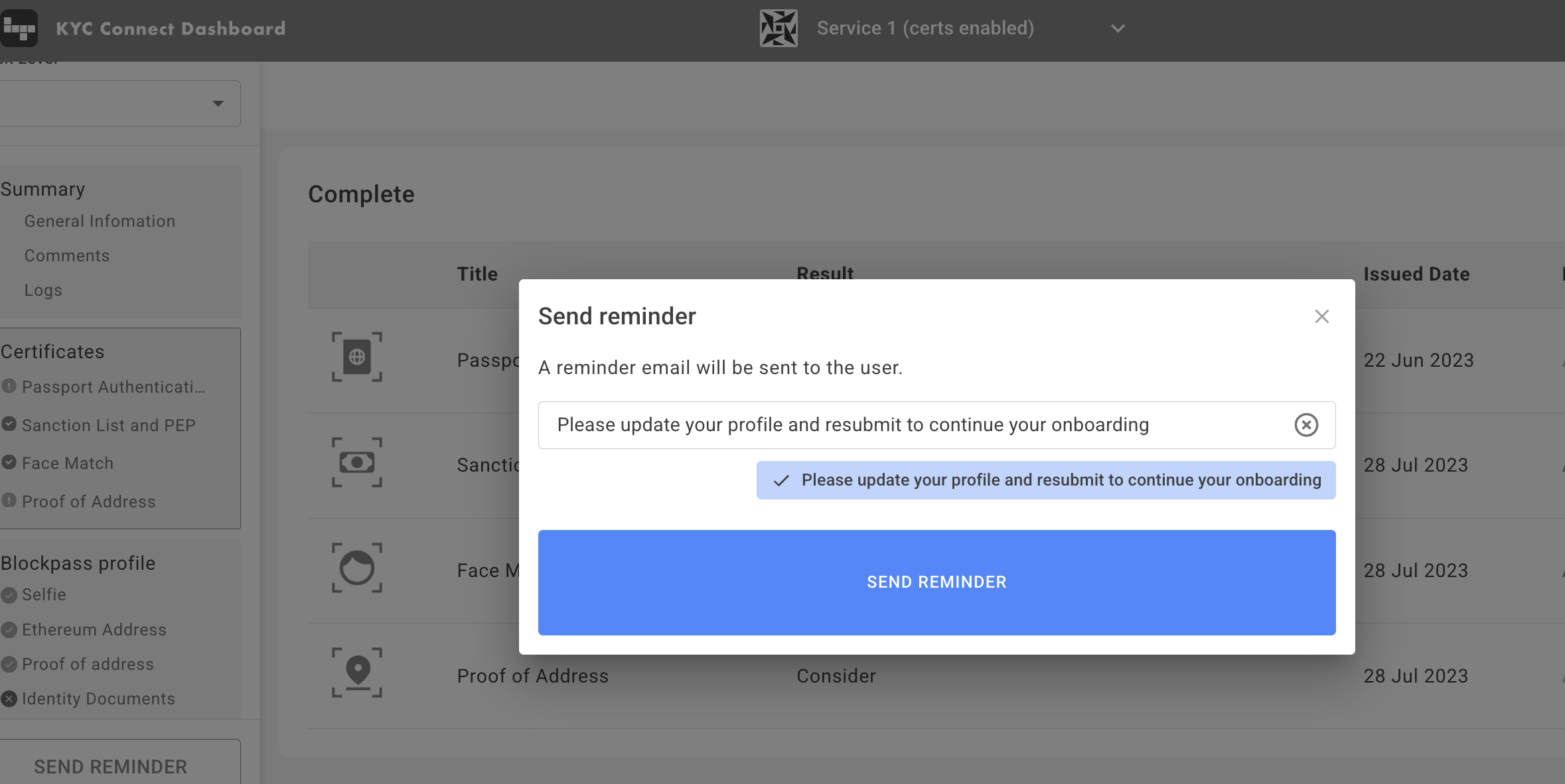
- Choose the default reminder message or edit it as needed.
- Click “SEND REMINDER” again and to send the reminder.
Customizing Reminder Settings
Section titled “Customizing Reminder Settings”1. Access Settings
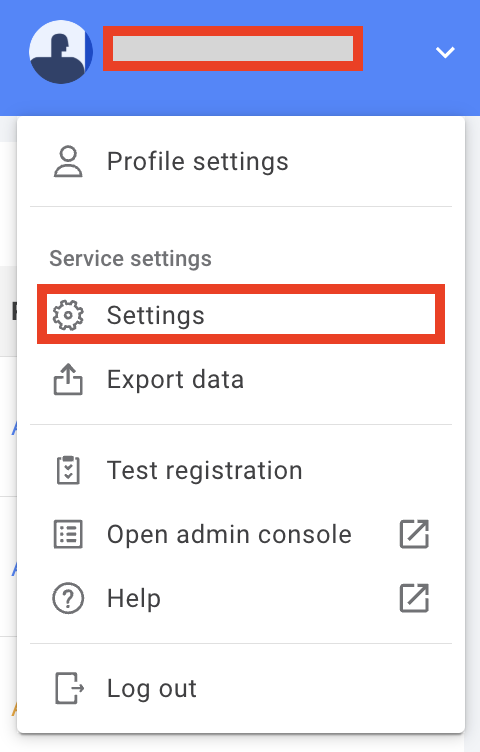
Section titled “1. Access Settings”- In the top right corner of the KYC Dashboard, click on the drop-down menu.
- Select Settings from the menu.
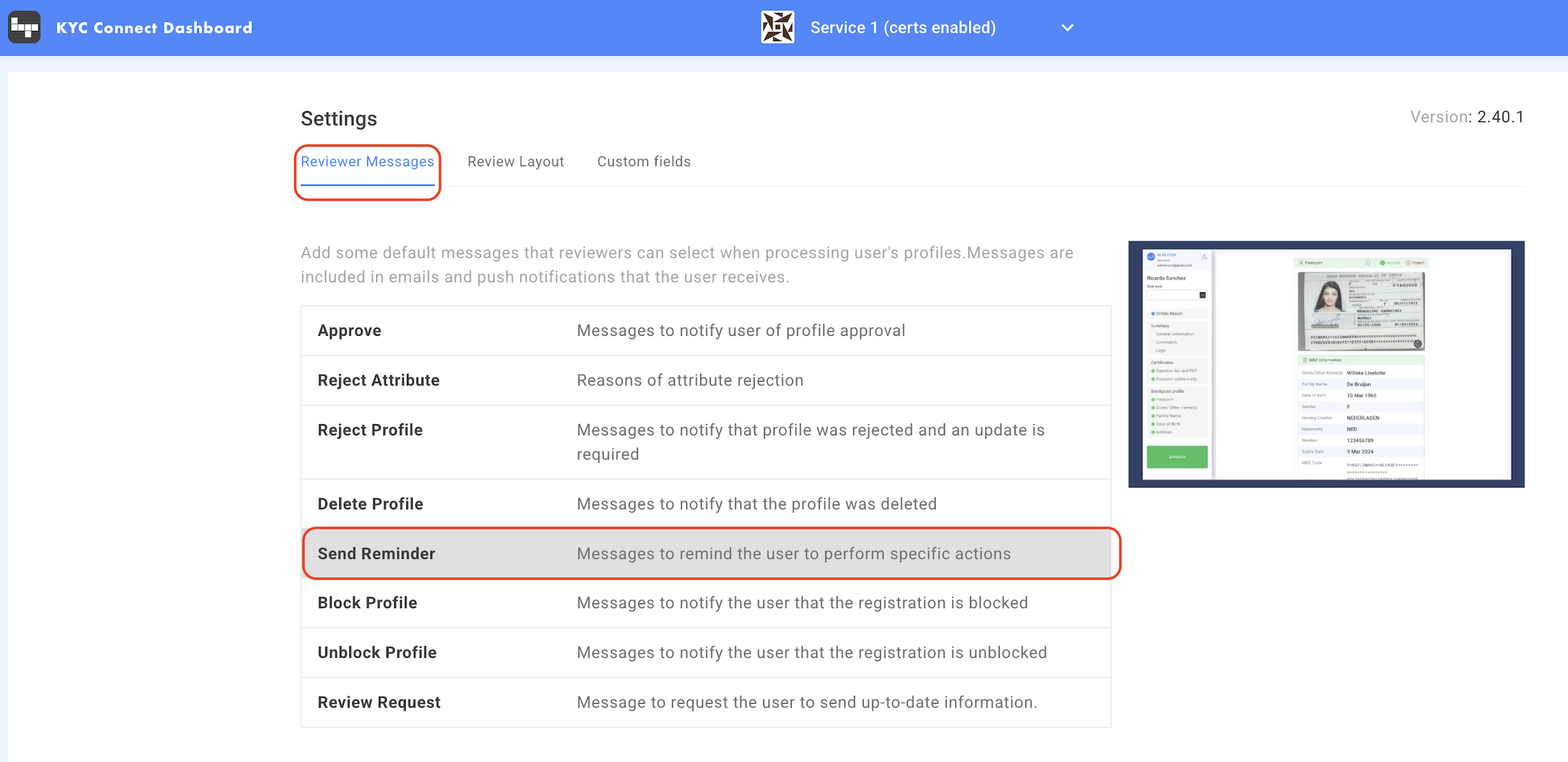
- Navigate to the Reviewer Messages tab in the Settings section.
- Locate the Send Reminder option to begin your setup
2. Customize Reminder Messages
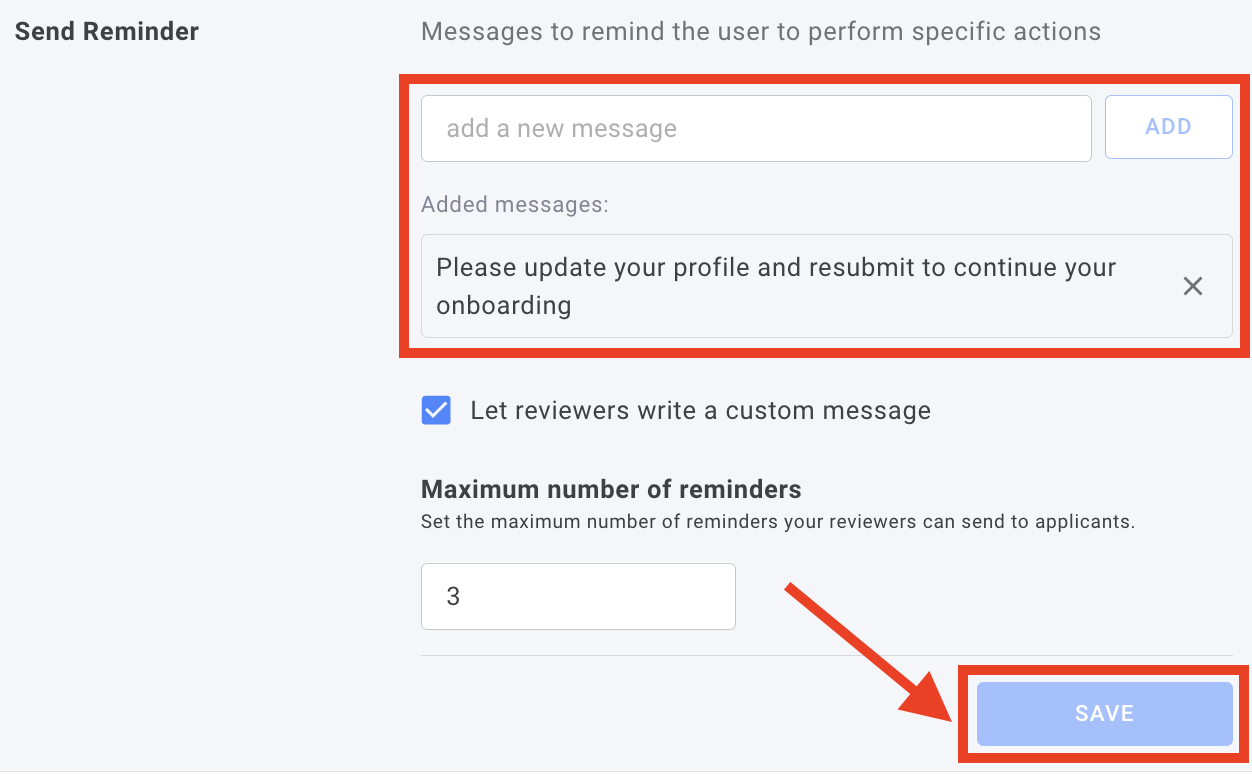
Section titled “2. Customize Reminder Messages”- Add a new message or edit an existing one in the Send Reminder section.
- When sending a reminder, if you have added multiple messages, the first message is set as the default option, but you can select another if needed.
- Save your changes by clicking “SAVE”.
3. Adjust the Number of Reminders
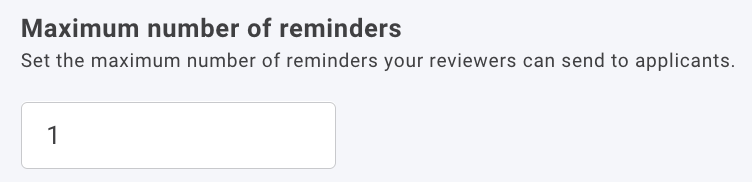
Section titled “3. Adjust the Number of Reminders”- By default, you can send only one reminder per user.
- To increase the limit, update this section in the settings.
- The maximum number of reminders allowed per category is 10
Additional Notes
Section titled “Additional Notes”- Reminders must be sent manually; there is currently no automated reminder feature.
- Our push notification system helps you effectively re-engage your user base and encourage profile updates.
By optimizing the reminder system, you can improve user activity and engagement with minimal effort.