Admin Console: Team Roles & Access
Efficient compliance operations require the right people having the right level of access. The Blockpass Console provides a granular, three-tier hierarchy to ensure security while maintaining operational flexibility.
Note: Only the Billing Owner can take action in the Team tab.
1. Role Hierarchy & Permissions
Section titled “1. Role Hierarchy & Permissions”Company Role
Section titled “Company Role”This is the highest level of access. It determines what a user can see at the organizational level, such as billing information, company-wide settings, and the ability to manage other team members.
| Role | Key Permissions |
|---|---|
| Billing Owner | Has full permissions within the console. This role can create new services and manage all aspects of the account, including billing and service configuration. |
| Accountant | Can update billing information and view service usage. This role is suitable for users responsible for financial tracking and payment management, without access to operational controls. |
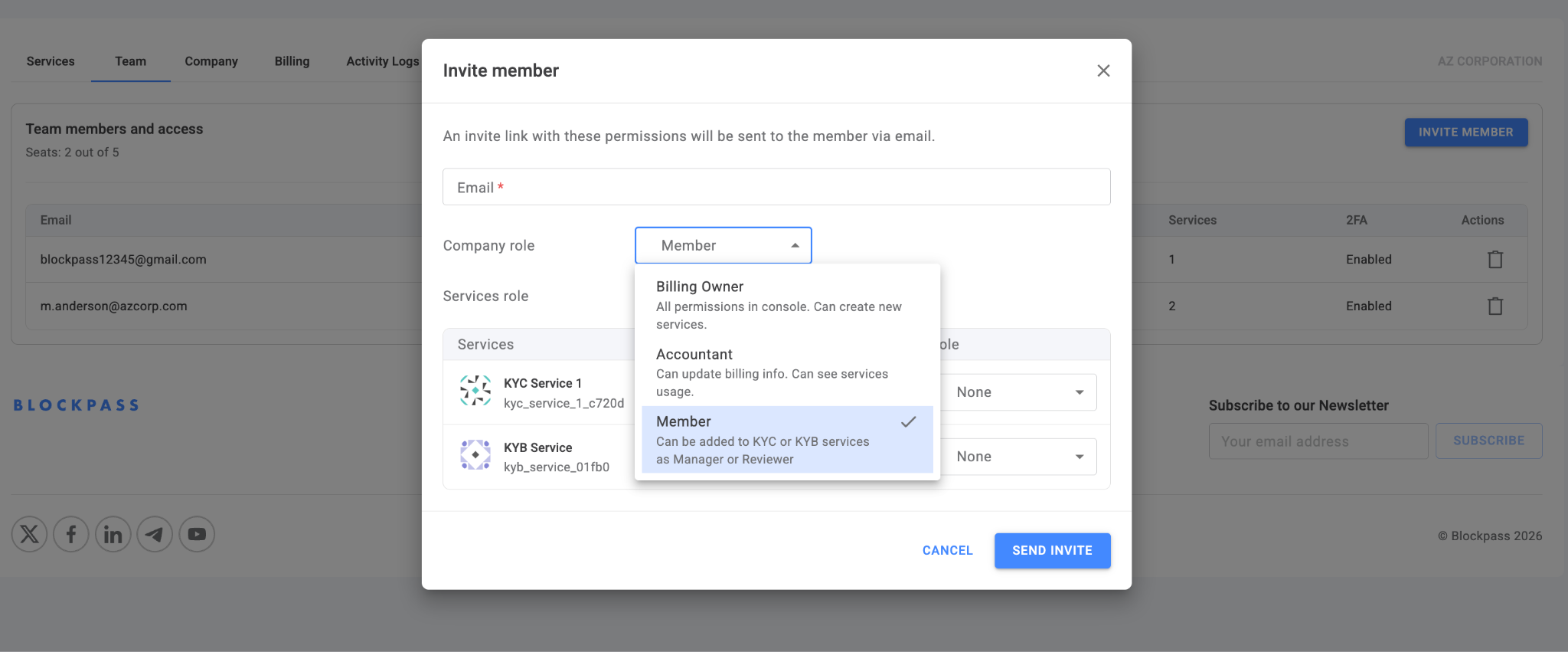
| Member | Has limited access. This role can be assigned to KYC or KYB services as either a Manager or Reviewer, depending on the required level of involvement in the verification process. |
Service Role
Section titled “Service Role”These roles define what a user can do within a specific KYC or KYB service (e.g., configuring requirements, reviewing individual user profiles, or exporting data).
-
KYC service
Section titled “KYC service”
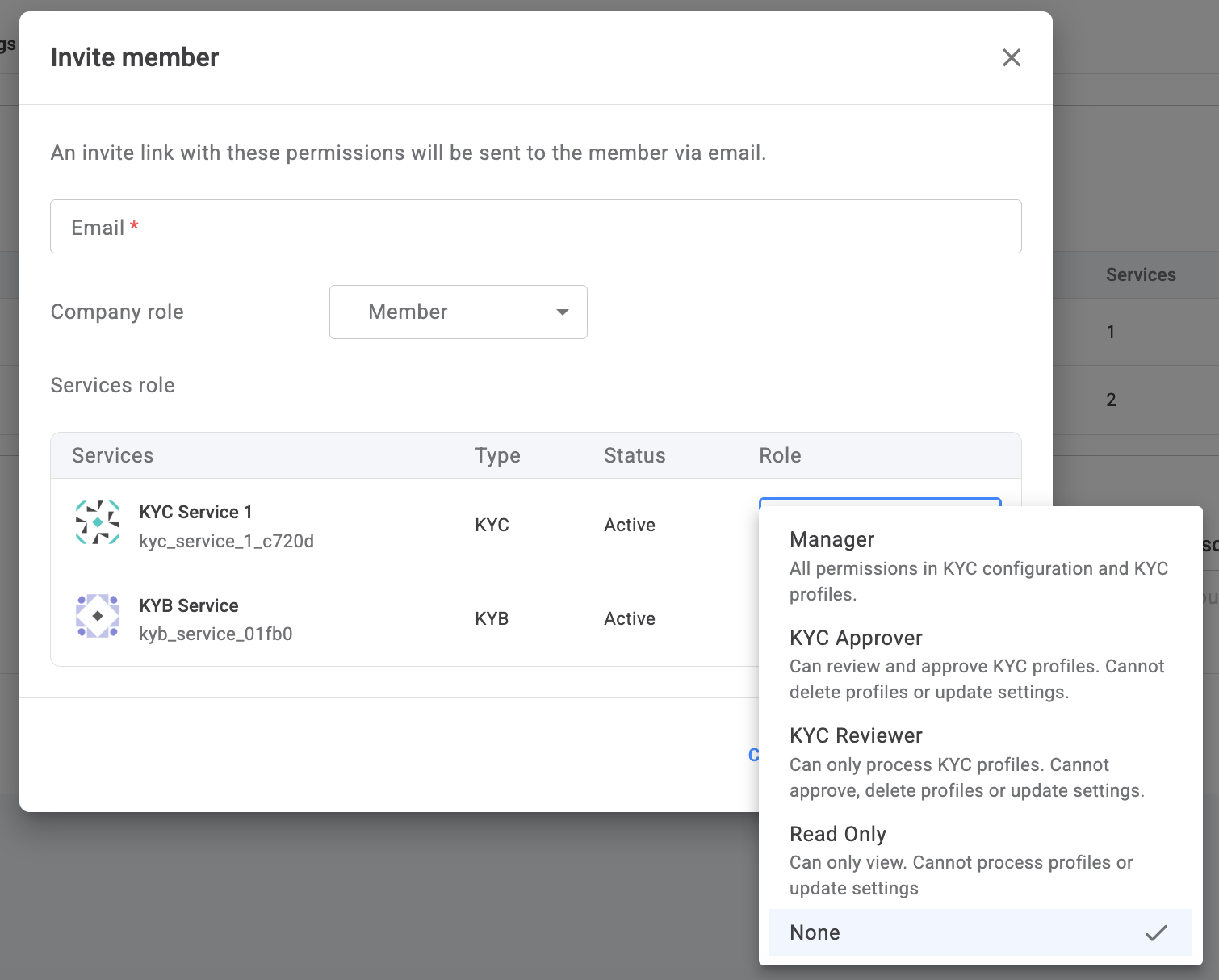
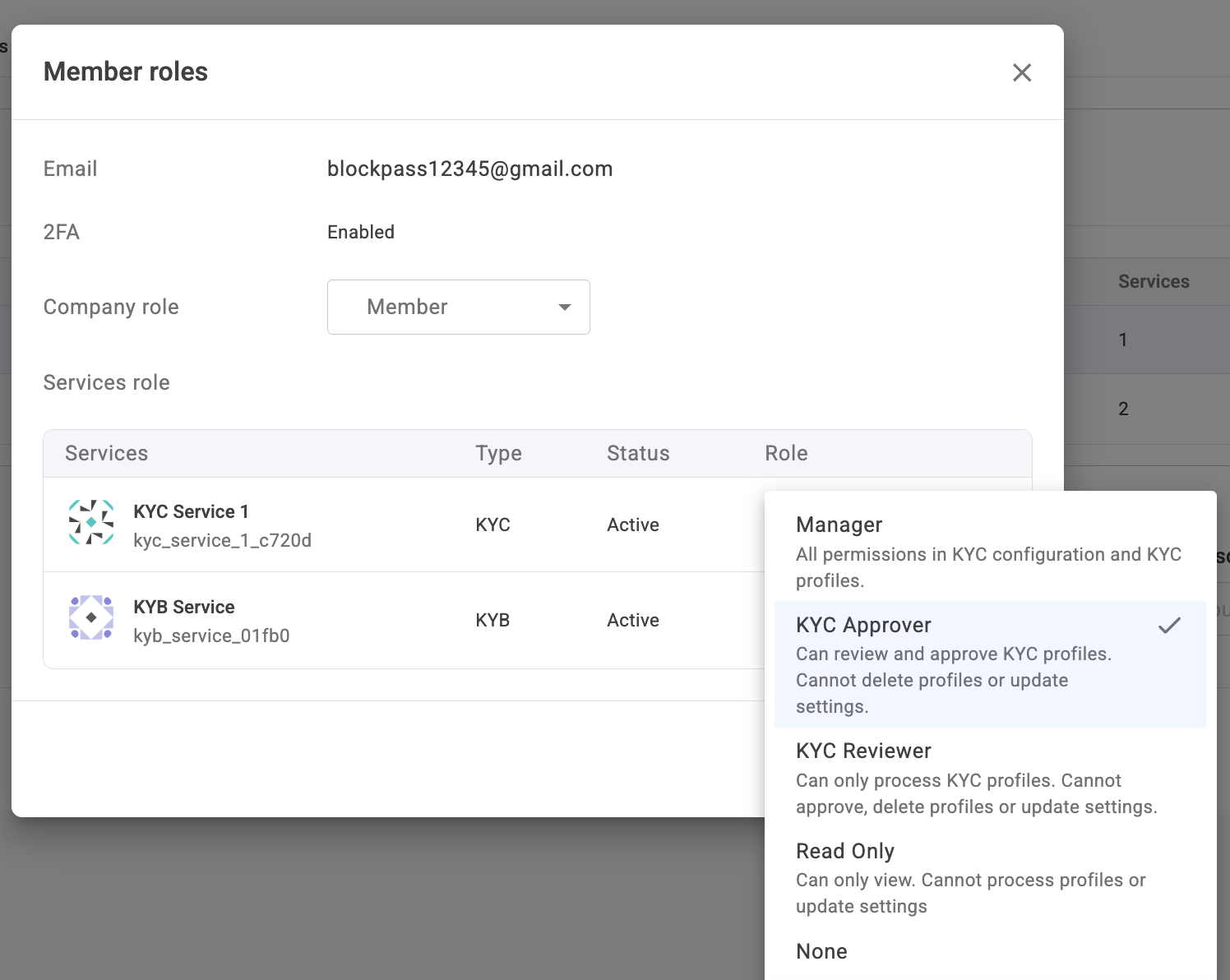
Hierarchy: Manager > KYC Approver > KYC Reviewer > Read-only > None
| Role | Key Permissions |
|---|---|
| Manager | Full access, including changing other account roles. |
| KYC Approver | Can review and approve profiles; cannot delete data or change settings. |
| KYC Reviewer | Can process profiles but cannot approve, delete, or change settings. |
| Read-only | Can view user profiles only. Cannot delete the profile or update settings. |
| None | Cannot access or see the service |
-
KYB service
Section titled “KYB service”
Unlike KYC services, KYB services currently support only two roles:
| Role | Key Permissions |
|---|---|
| Manager | Full access to the KYB service, update KYB status or export data. |
| None | Cannot access or see the service. |
2. Managing Team Access
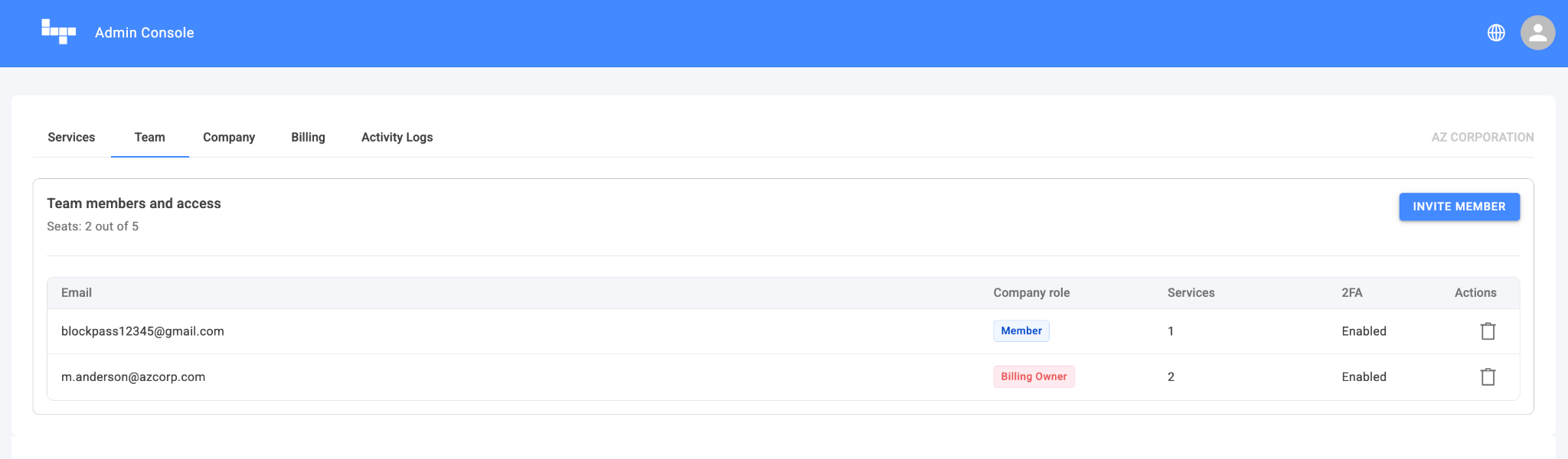
Section titled “2. Managing Team Access”To start, log in to Blockpass Admin Console and navigate to the Team tab.
Add a Team Member
Section titled “Add a Team Member”- To Add: Click INVITE MEMBER, enter the email, and assign a Company Role. You can also assign roles for existing KYC/ KYB services simultaneously.
- The “NONE” Option: If you want to add a member to the company account (e.g., for billing or general oversight) but do not want them accessing specific KYC/KYB data yet, select NONE for those services.
- Click the SEND INVITE once you have finished assigning roles for the company and service level.
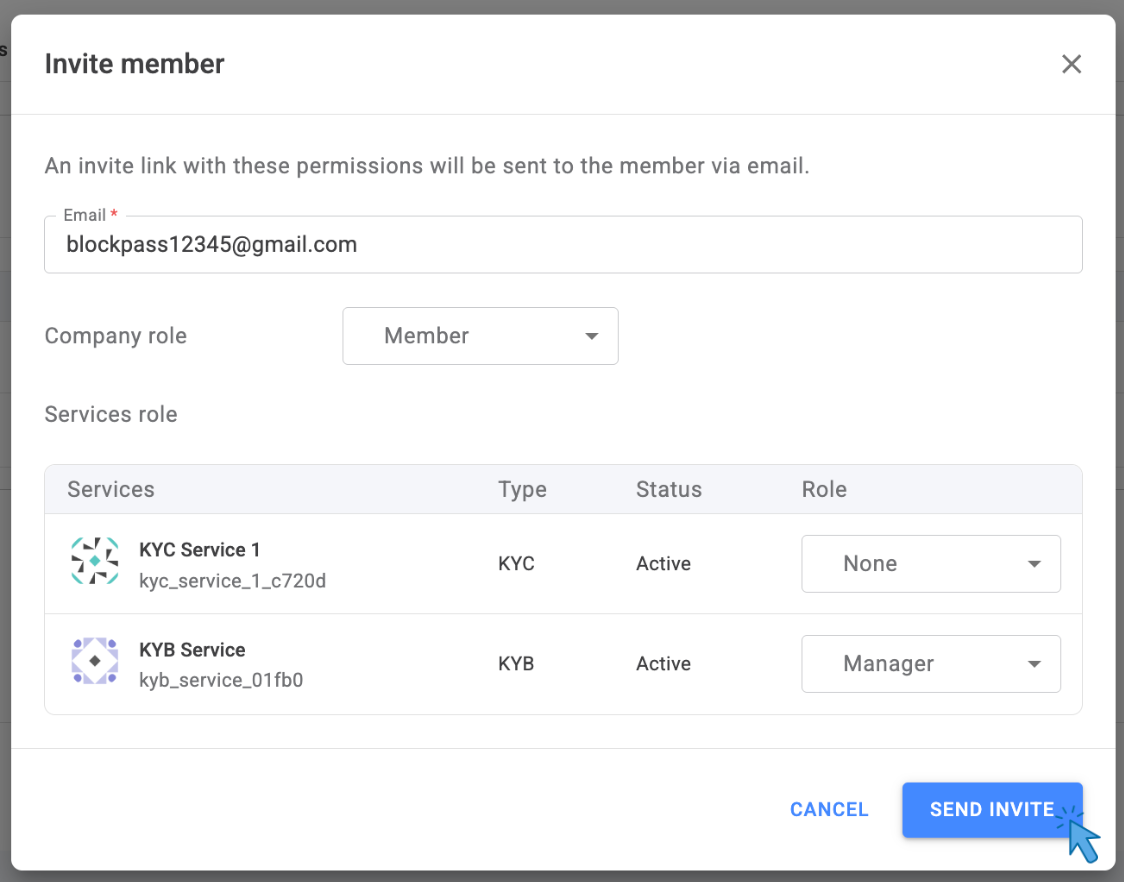
- The invitee will receive an email to accept the invitation and set up their account.
Once they accept, you (the inviter) will receive a notification email confirming they have successfully joined the team.

Remove a Team Member
Section titled “Remove a Team Member”-
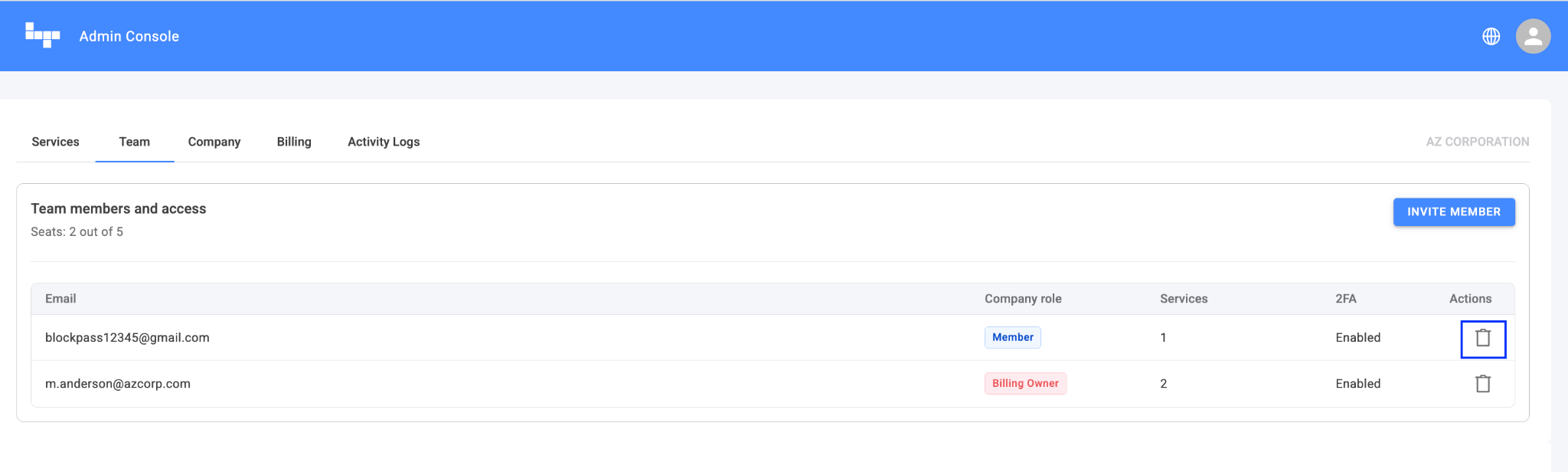
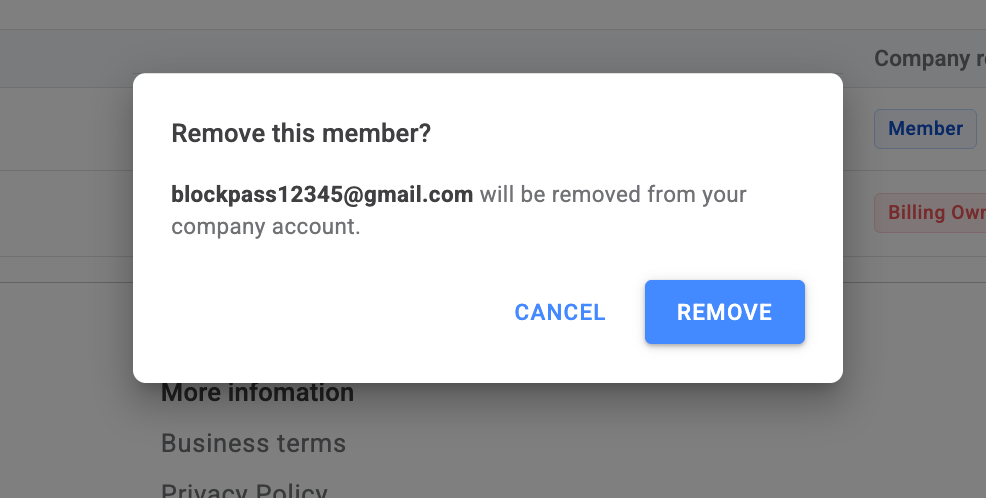
Remove a team member at the company level: Locate the member’s email and click the Delete icon > REMOVE.
⚠️ Deleting a member at the Company level revokes all access immediately across all services.
-
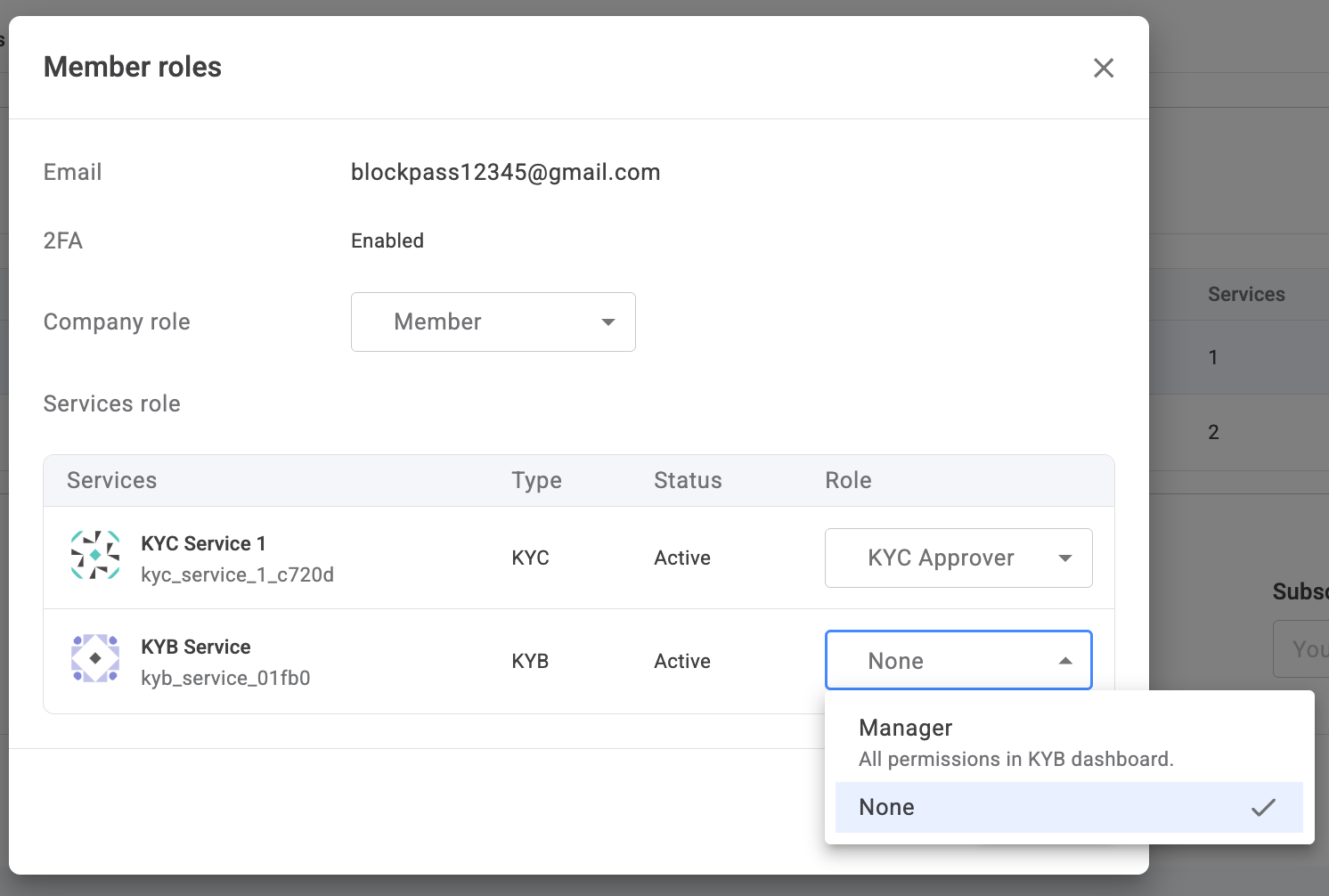
Remove a team member at the service level: To remove a member from a specific service without deleting the company-level account, change their service role to NONE. This effectively revokes their ability to see or interact with that service’s dashboard.
- Click the member’s email to open a pop-up.
- Choose the service that you want to remove the member from => Select None > UPDATE
Update roles for a Team Member
Section titled “Update roles for a Team Member”- In the Team tab, click on the member’s email to open a pop-up. From there, select the new role > click UPDATE.
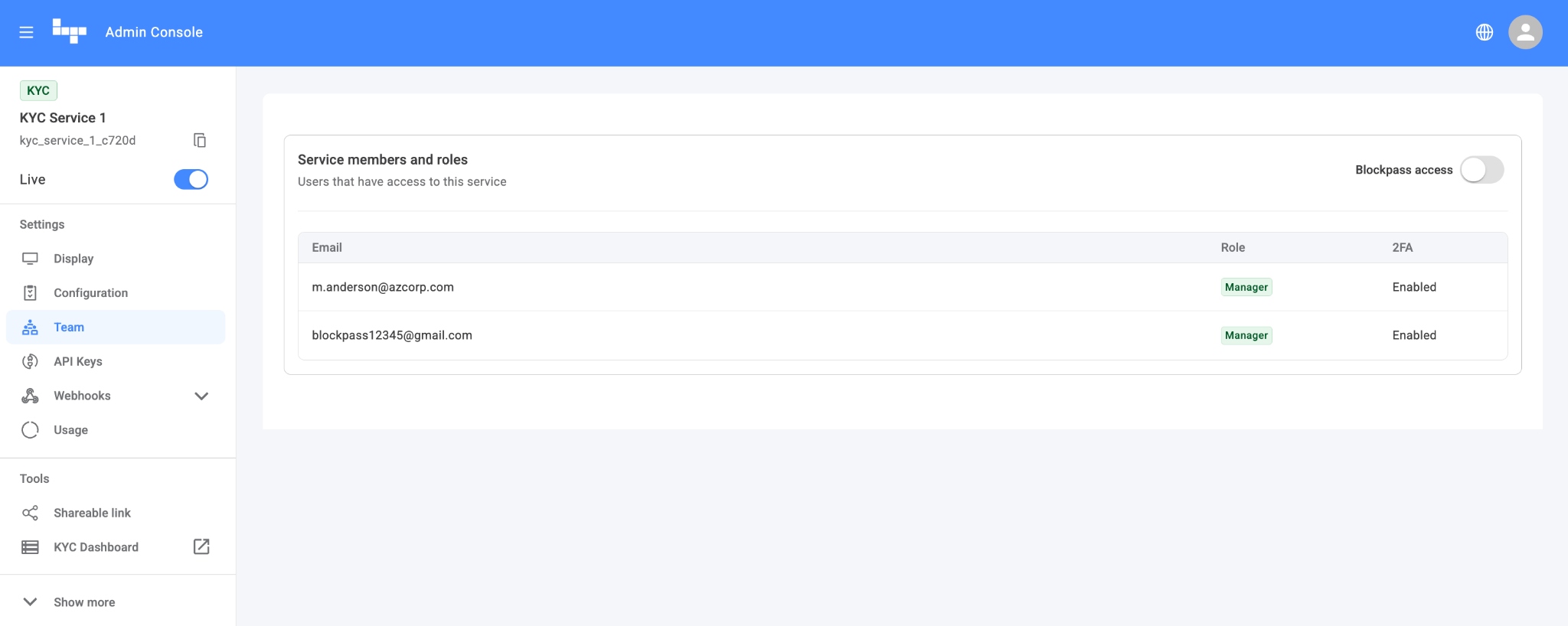
The Service: Team Tab
Section titled “The Service: Team Tab”This tab is specific to an individual service.
- Visibility: Displays all members currently invited to that specific service and their roles within the service.
- Adding Members: An account with both the Billing Owner (Company) and Manager (Service) roles can see and add other existing company members to this service.