

Mastering the Admin Console: Your Central Management Hub
The Blockpass Admin Console serves as your central command center for managing business identities, subscriptions, team permissions, and security audits. By consolidating these tools into one streamlined interface, Blockpass ensures your operations remain organized and secure.
🔑 Navigating the Hub
Section titled “🔑 Navigating the Hub”Once you log in to the Blockpass Admin Console, you will find the main management tabs prominently displayed. This centralized layout allows you to toggle between operational tasks and administrative settings with a single click.
[!IMPORTANT] Permissions Note: To maintain account security, only the Billing Owner has full authority to modify company details, update payment methods, change service plans, or manage top-level team access.
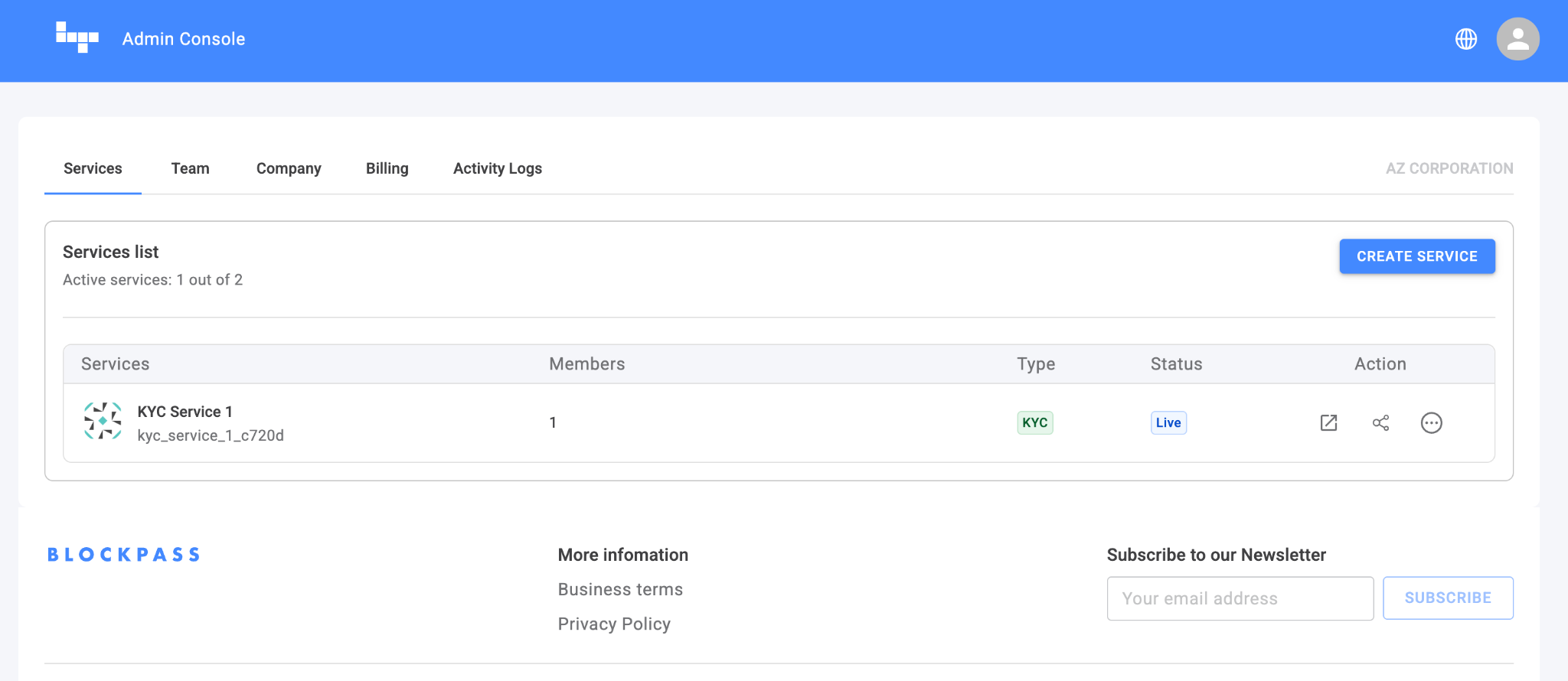
1. Services
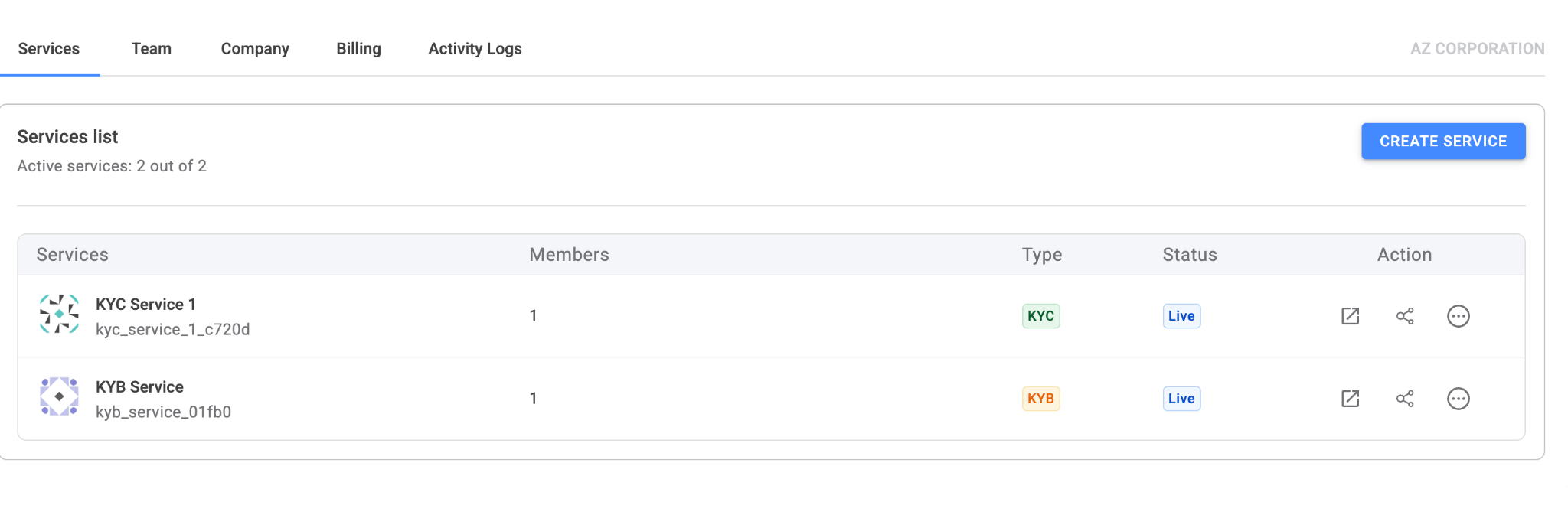
Section titled “1. Services”The Services tab provides a high-level overview of all active compliance workflows.
- Operational Oversight: View every KYC and KYB service created under your company.
- Status Tracking: Monitor the live status of each service and see how many team members are currently assigned to them.
- Create service: Create a new KYC/ KYB service.
- Direct Entry: Click on any service row to jump straight into that service’s specific management dashboard.
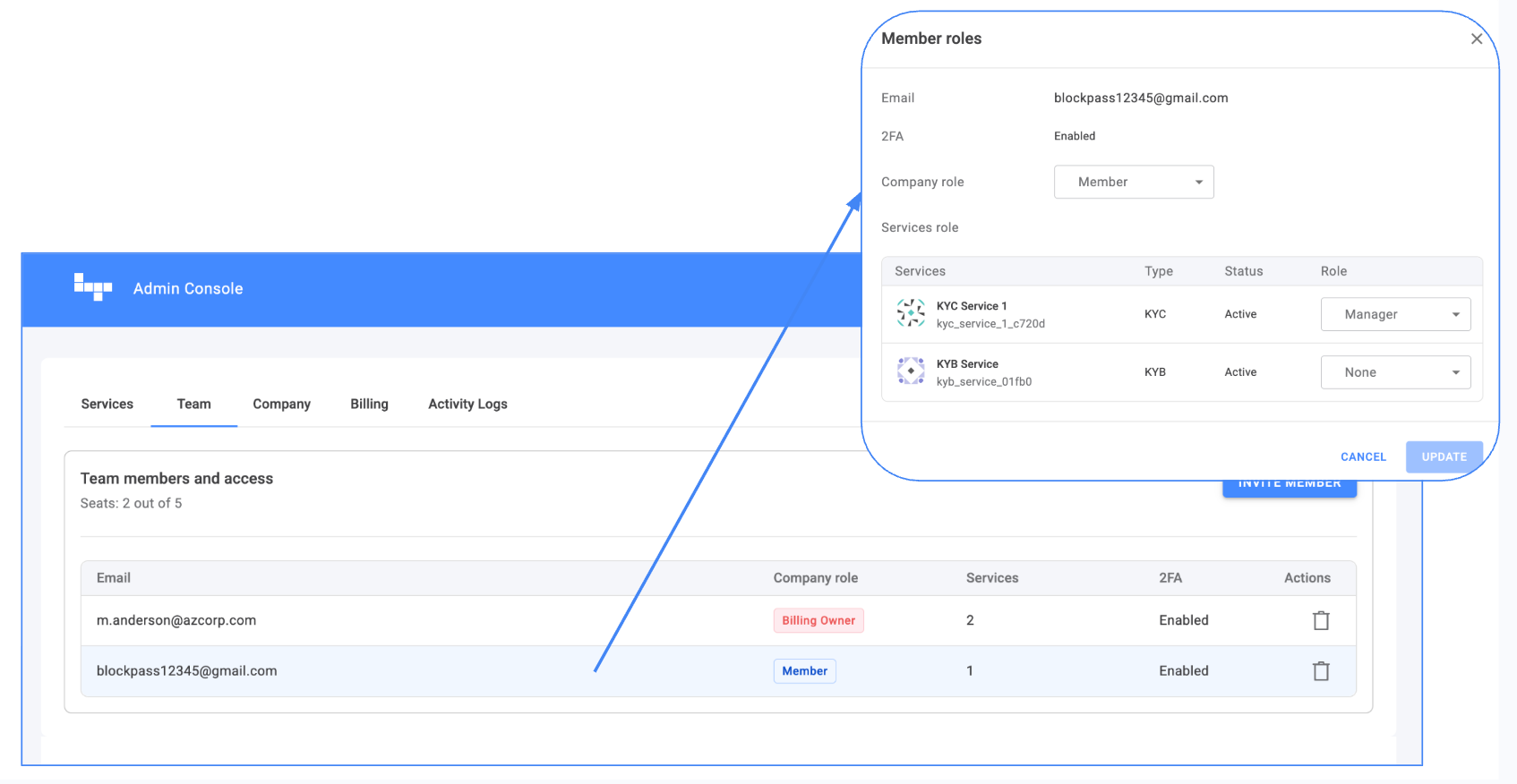
2. Team
Section titled “2. Team”The Team tab is where you manage human resources and access control.
- Invite & Revoke: Add new colleagues to your company account or remove access for those who no longer require it.
- Roles & Permissions: Review company-level roles and see exactly which services each member can access, along with their specific permissions within those services.
For a deep dive into managing permissions and user levels, please refer to our Team Roles & Permissions Article.
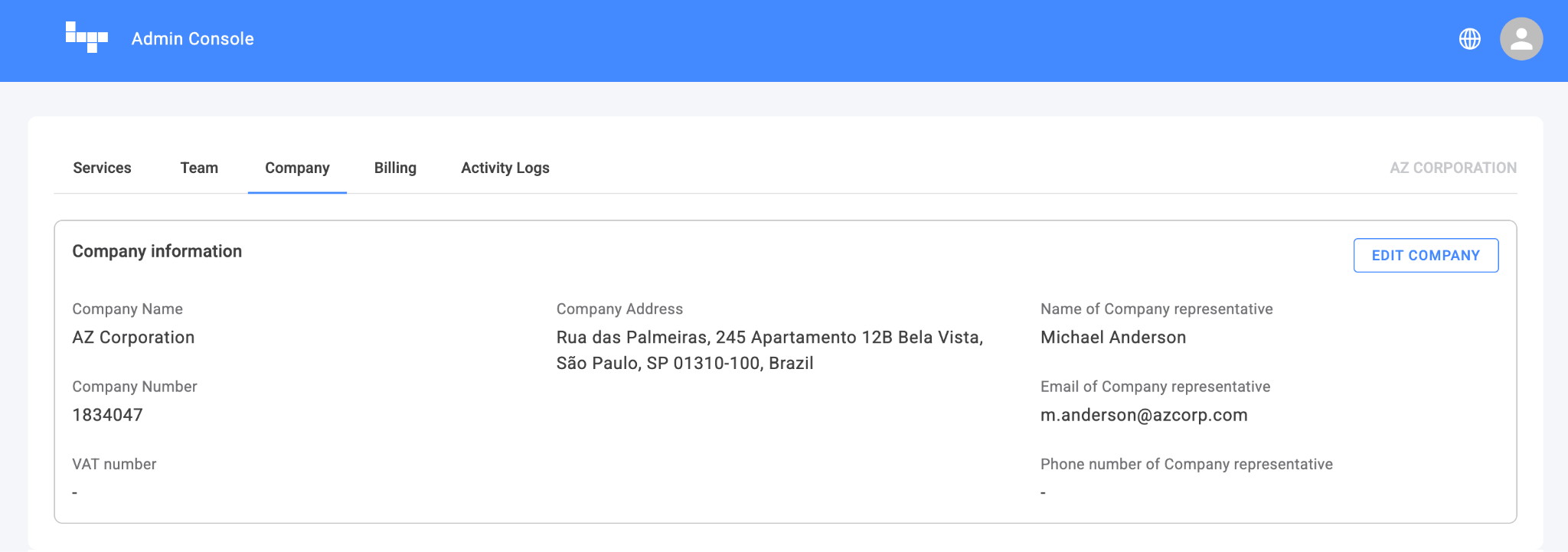
3. Company
Section titled “3. Company”Manage the corporate identity tied to your Blockpass integration.
- View & Edit: Keep your profile accurate by updating business details via the EDIT COMPANY button.
- Multiple Services under multiple company accounts: If you have access to another service under another company account, use the dropdown menu to switch between different company profiles.
[!CAUTION] Updating company details (such as a business address or tax ID) may automatically trigger changes in your tax calculations or billing cycles.
4. Billing
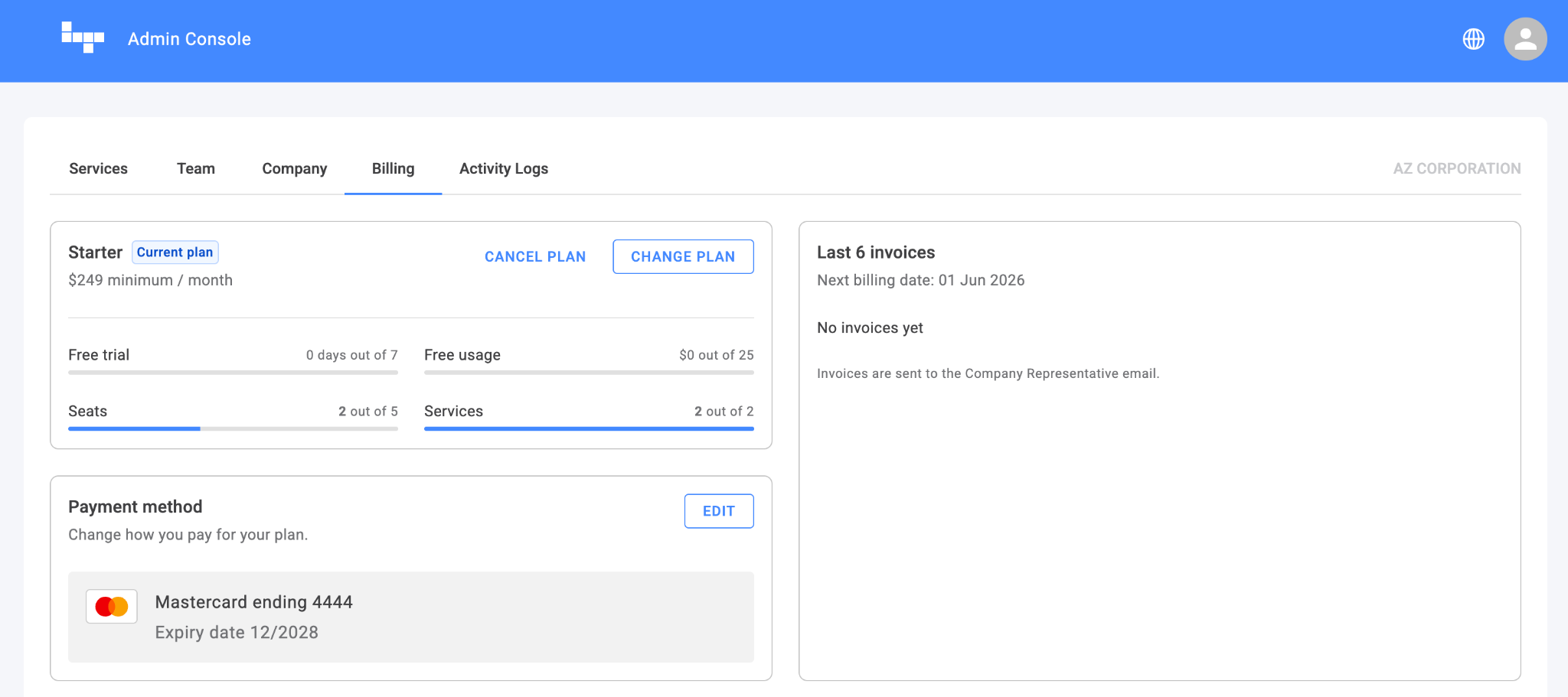
Section titled “4. Billing”The Billing tab provides a comprehensive look at your financial relationship with Blockpass.
- Plan Overview: View your current plan (Basic, Starter, Growth, or Corporate) and manage your subscription. This is where you can Upgrade, Downgrade, or Cancel your plan.
- Note: For Corporate plans, modifications are available after the 12-month commitment period ends.
- Usage Tracking: Get a high-level view of your current usage across all services, including the number of active Seats (team members) and total Services under your company account.
- Payment & Invoicing:
- EDIT your Payment Method (Change your bank card).
- Access and Download Invoices for your accounting records.
5. Activity Logs
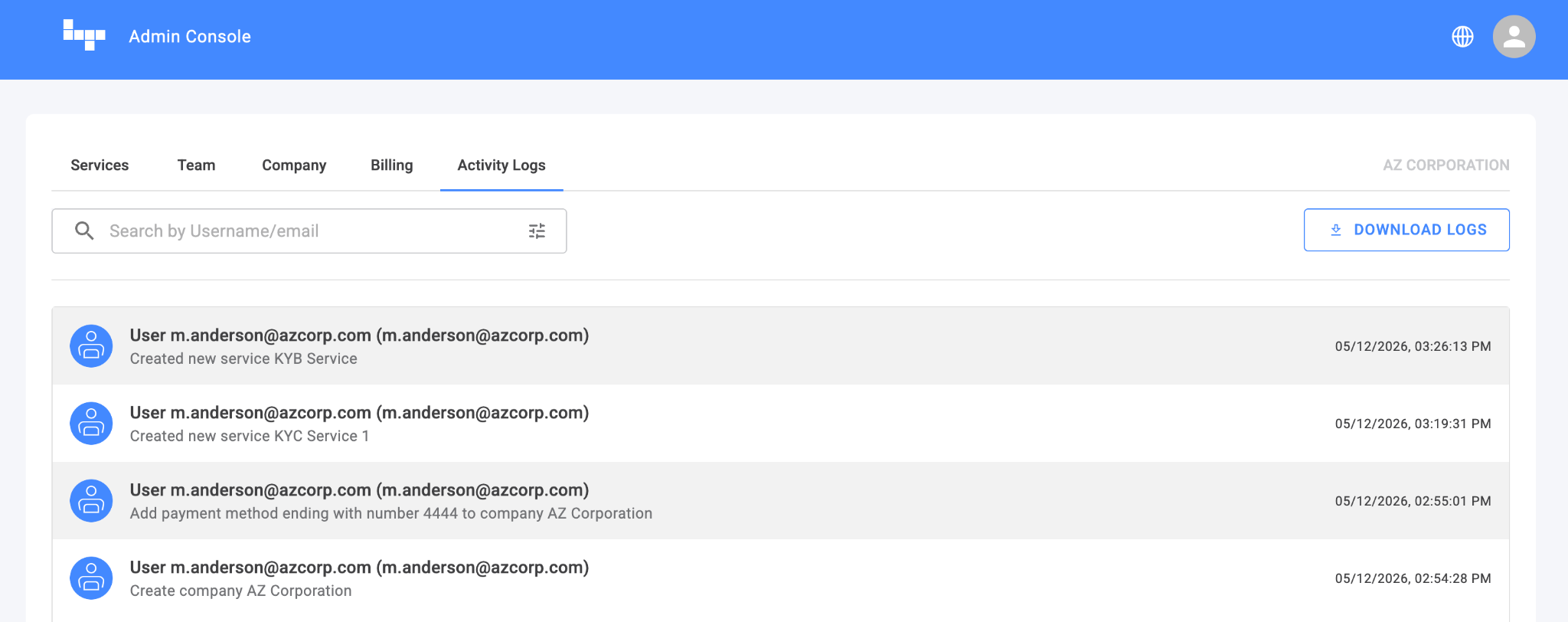
Section titled “5. Activity Logs”The Activity Logs tab serves as your internal audit trail.
- Audit Readiness: View a chronological history of significant actions taken within the console.
- Security: Track changes to billing, team permissions, and company settings to ensure accountability across your organization.
Need help with your account? If you have questions regarding your billing version or need assistance with company settings, please reach out to our team at [email protected] or visit the Blockpass Support Form.