Passkey feature
What is a Passkey?
Section titled “What is a Passkey?”At Blockpass, security is central to everything we do. Safeguarding data—especially personal data—is our highest priority. Controlling access is fundamental to securing any system, which is why we have introduced passkeys. As the modern standard for authentication and 2FA, passkeys allow users to register and authenticate securely, delivering top-tier, next-generation protection.
Additionally, Blockpass features specialized privacy controls:
- Data Retention: Personal information is automatically stripped and archived according to the data retention policy of your plan.
- End-to-End Encryption: From 1 January 2027, Subscription plan customers with more than 100 profiles must secure their data with their own encryption keys, and other Subscription plan customers can choose to. Archived data stays accessible only with the customer’s private key. See Advanced Data Encryption for setup.
This provides industry-leading security designed to benefit every business.
Setting Up Your Passkey
Section titled “Setting Up Your Passkey”-
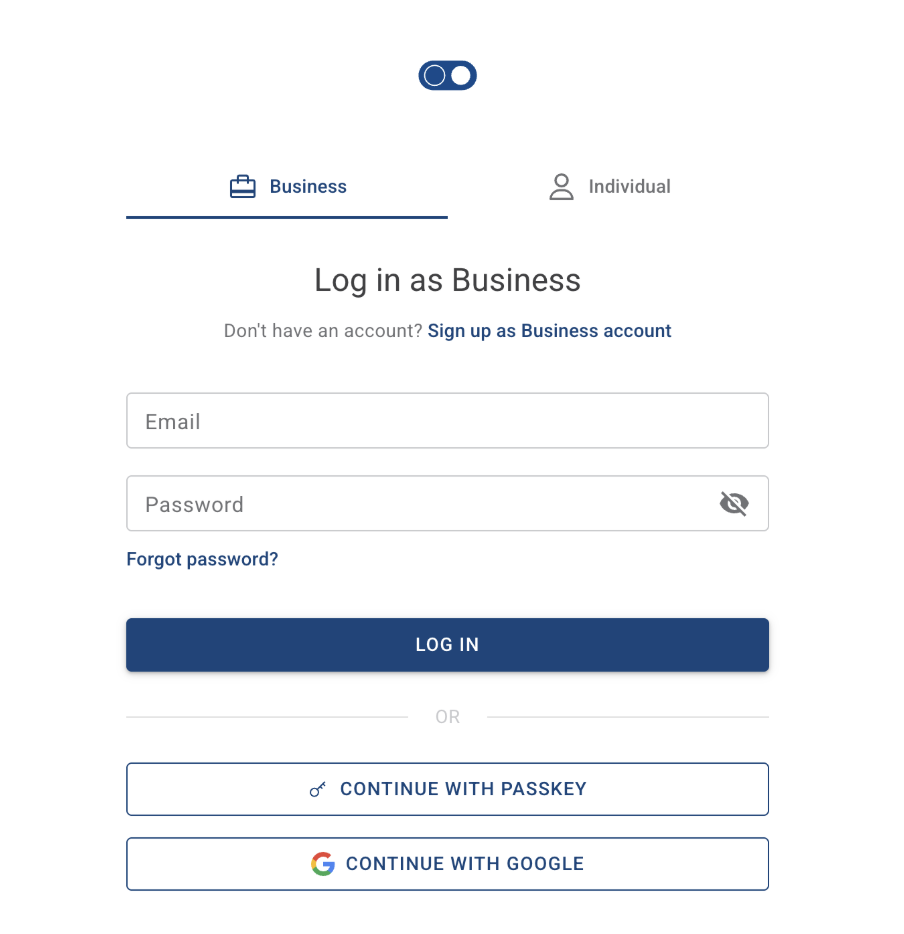
Log in to the oauth.blockpass.org using your existing email and password.
-
After logging in, Choose Passkey. Then enter the Passkey Name so you can recognise it later, then confirm with your device. Click CONTINUE WITH DEVICE.
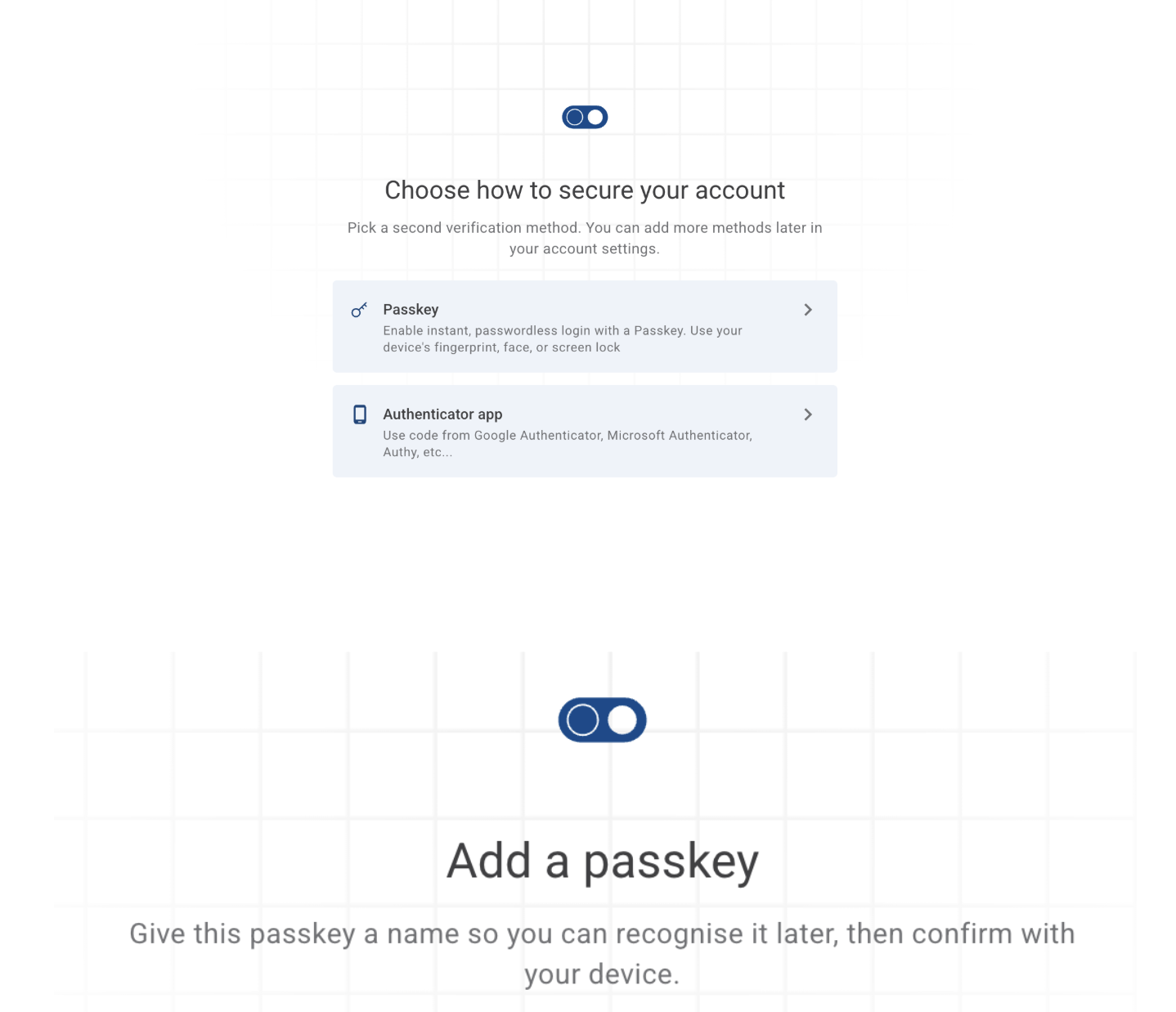
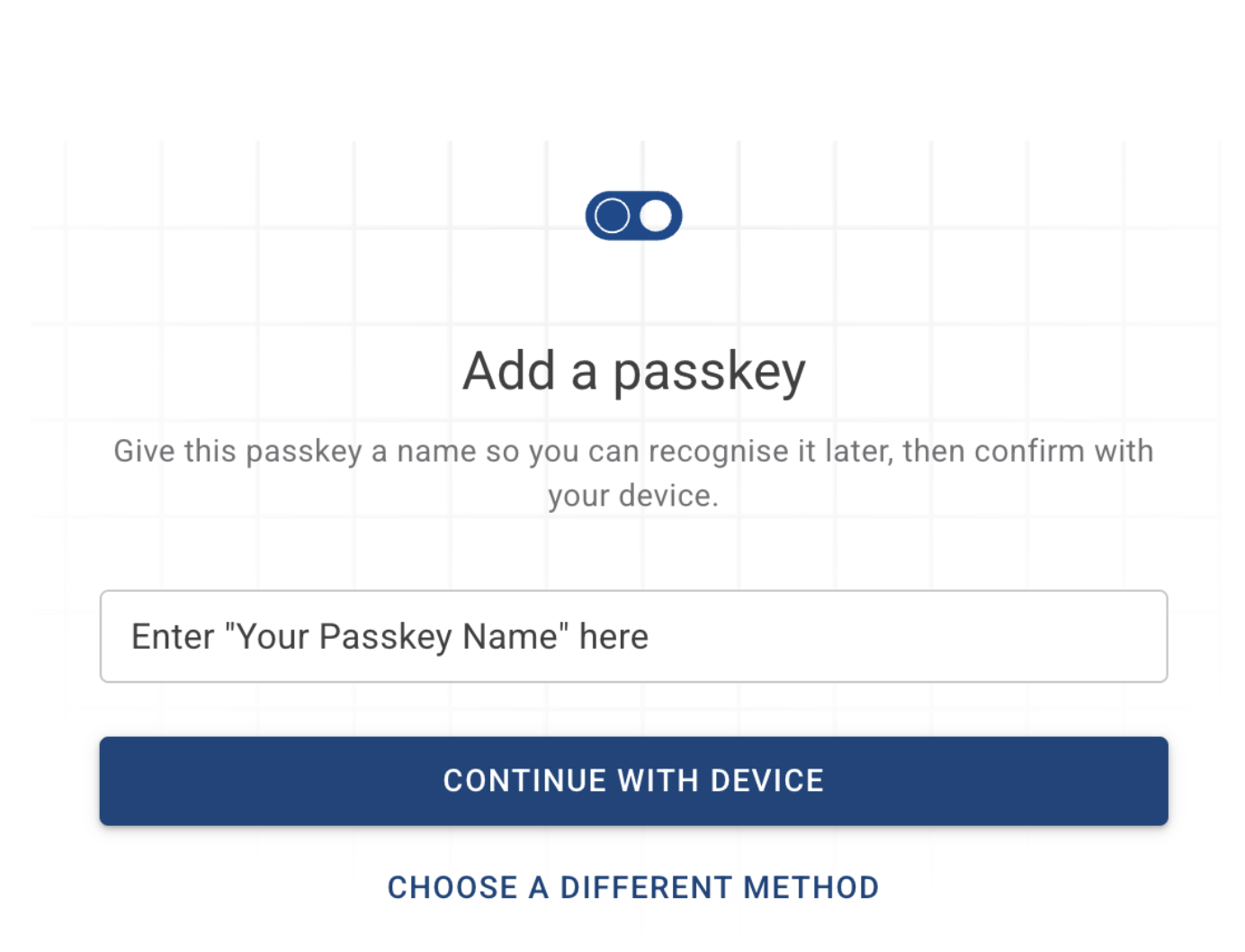
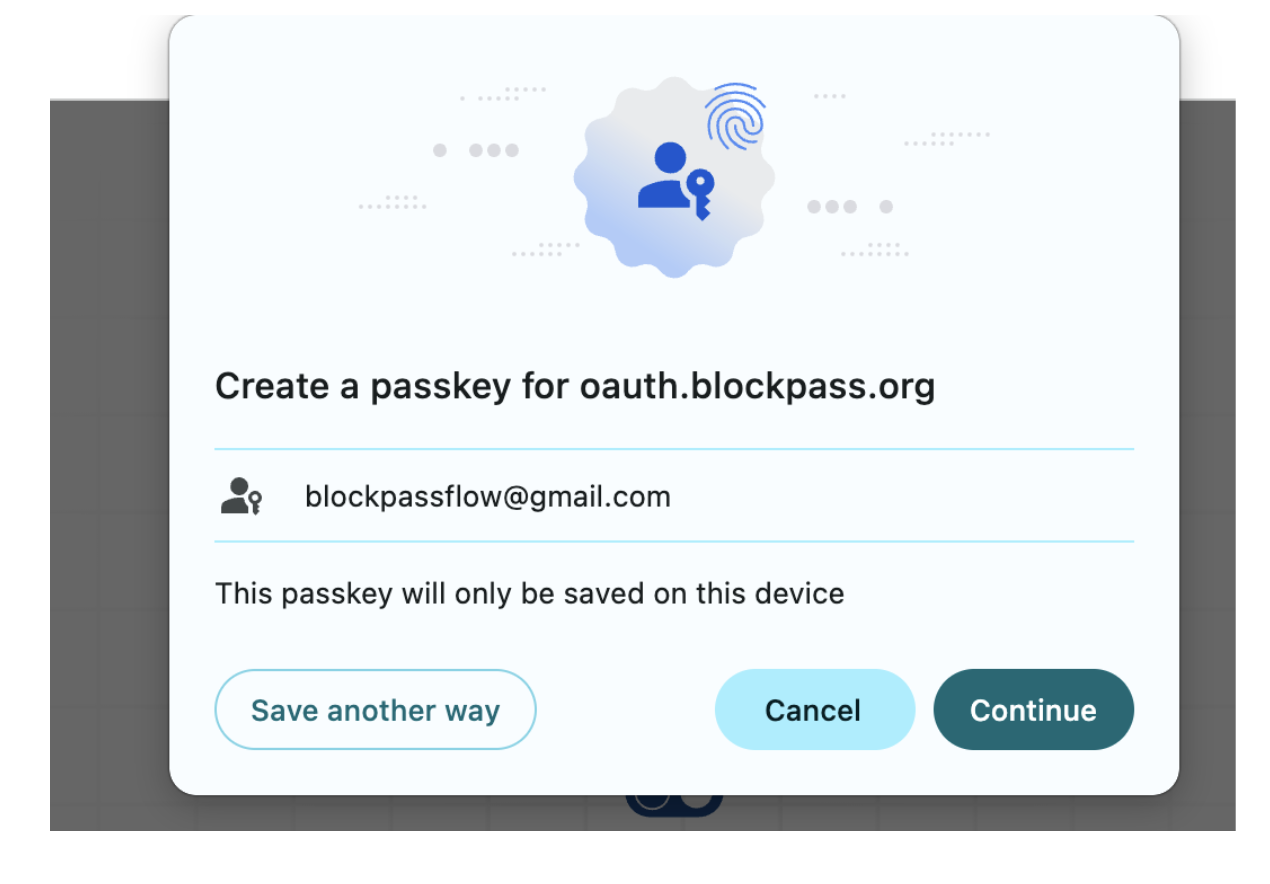
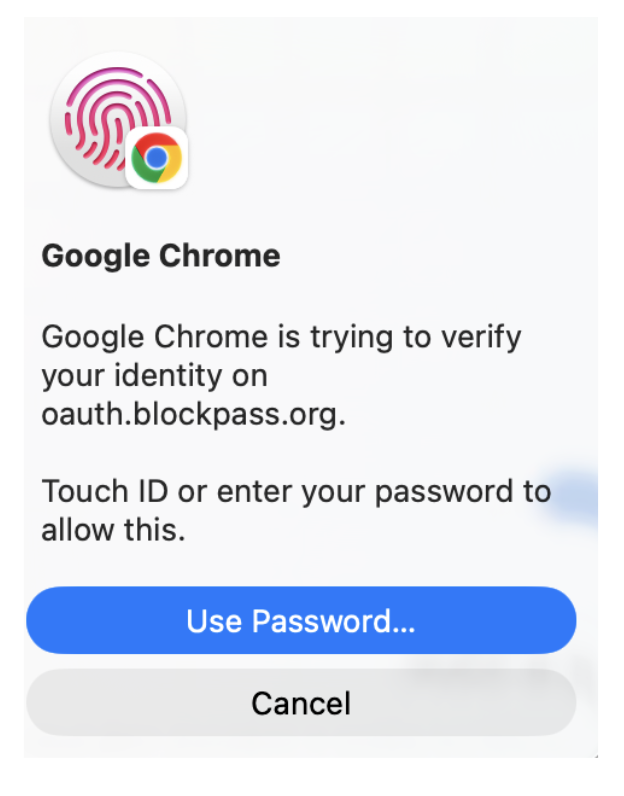
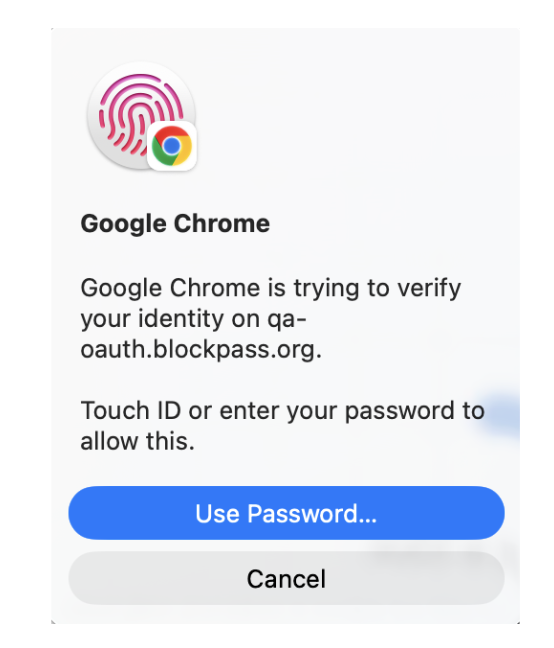
Option 1 — Continue Click Continue and follow the instructions provided by your device to complete passkey setup. Enter your Device Password or Touch ID to activate the Passkey.
Option 2 — Save another way If you prefer to save your passkey using a different method, click Save another way. You can then choose one of the following:
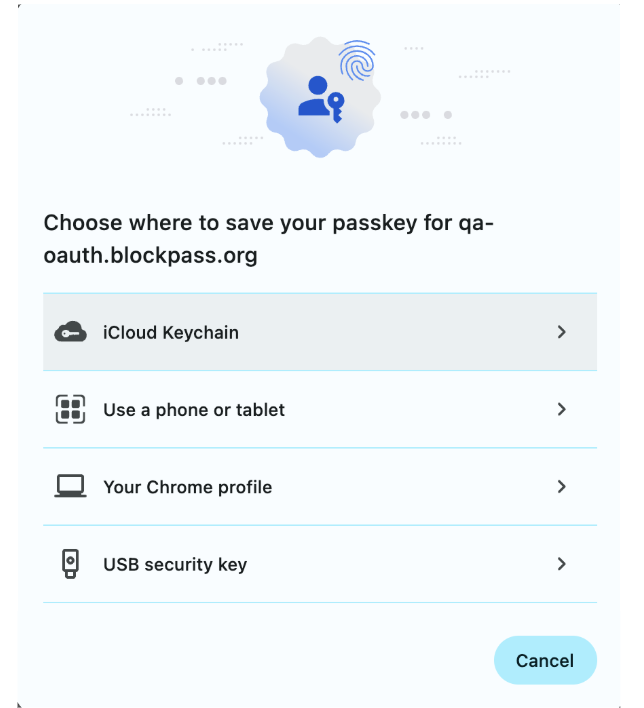
-
Use iCloud Keychain — Save your passkey to iCloud Keychain.
Step 1: Activate the iCloud on your account which login to the device that you are using.
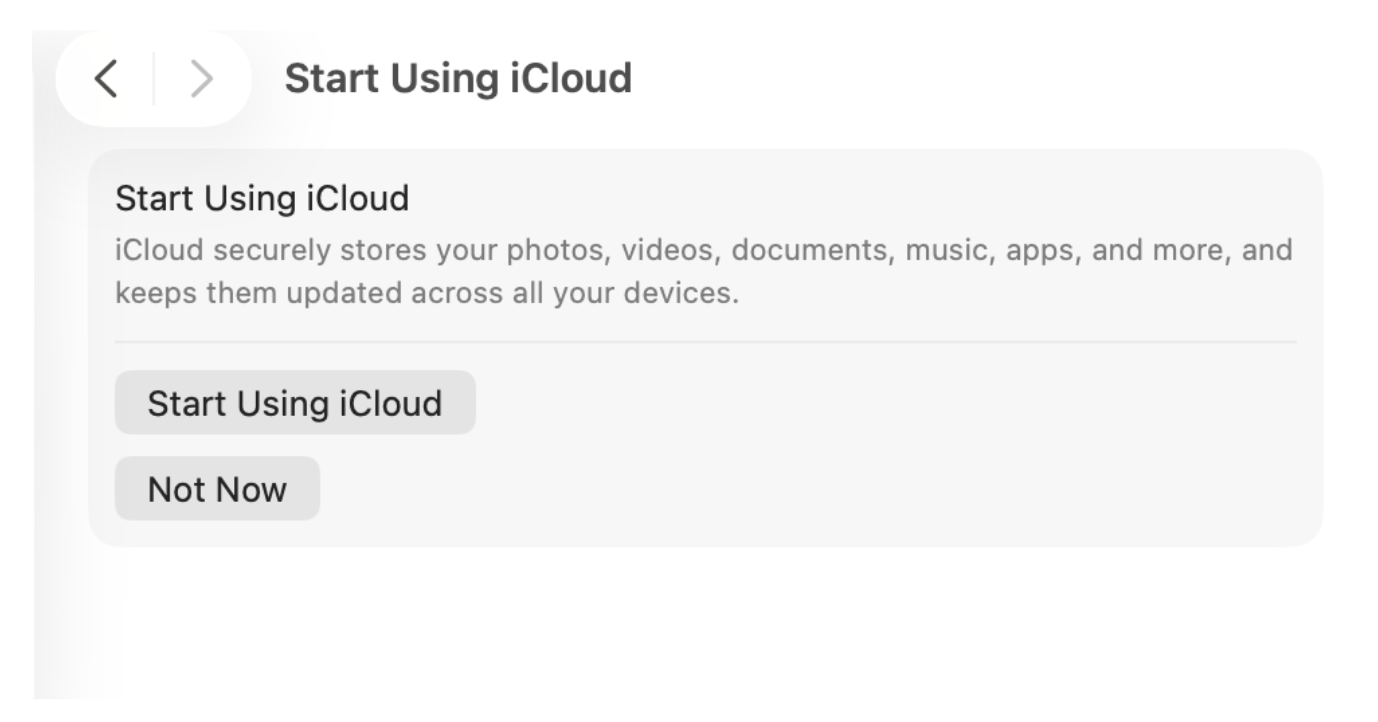
Step 2: Choose iCloud Keychain

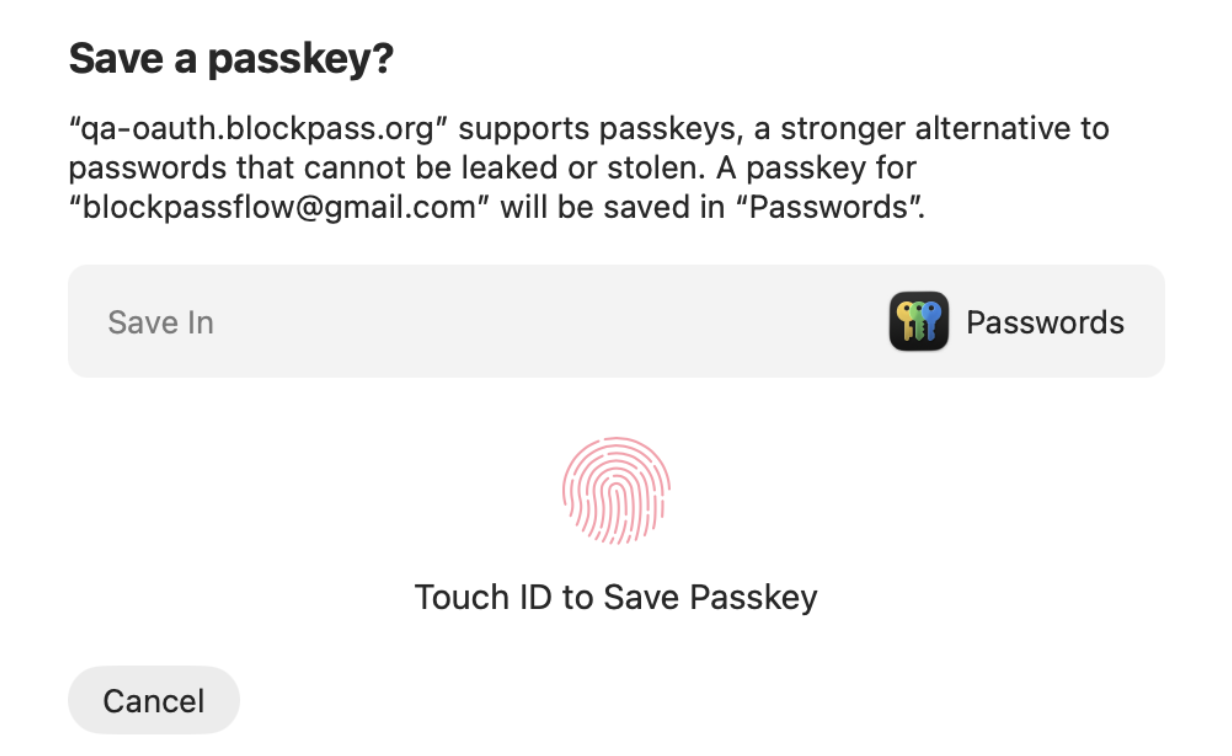
Step 3: Use the Touch ID to save your Passkey. After saving, it’s ready to use for future logins.
-
Use a phone, tablet — Create or save the passkey using another device or a security key.
Step 1: Choose Use a Phone or Tablet.

Step 2: Use your Phone or Tablet to scan the QR Code which has been provided.
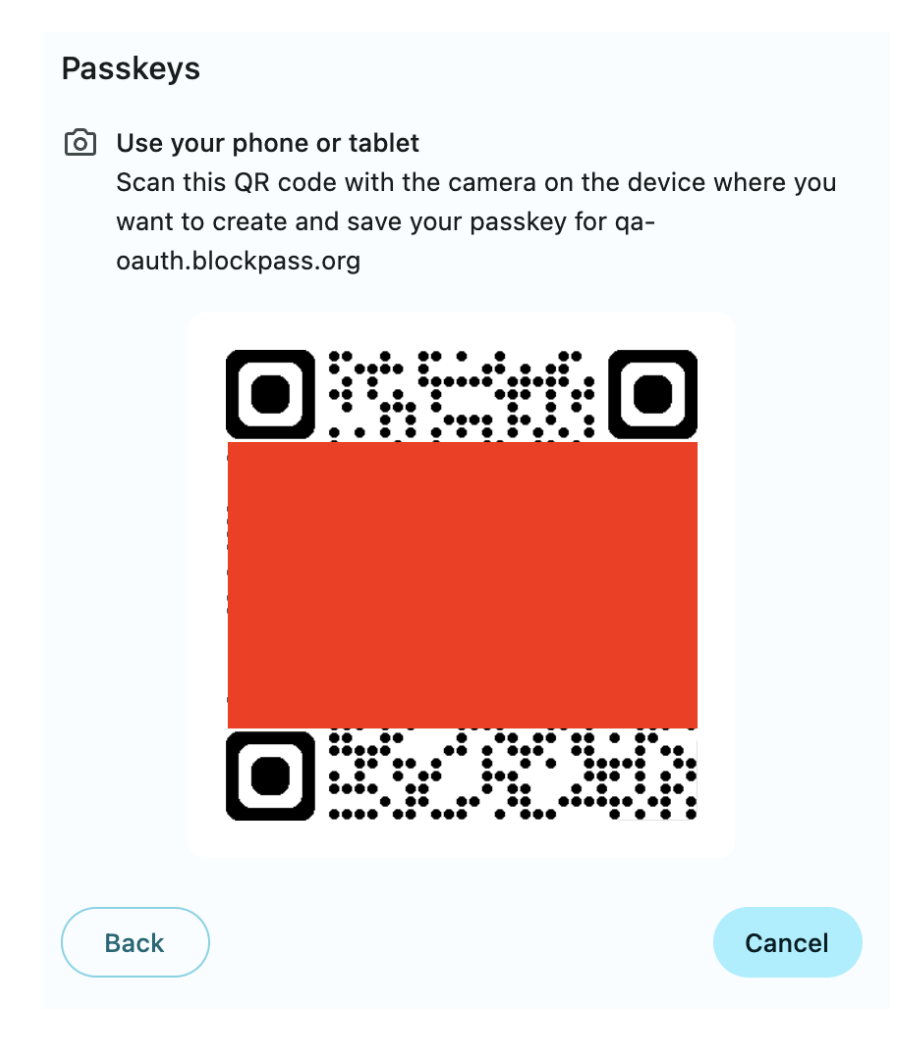
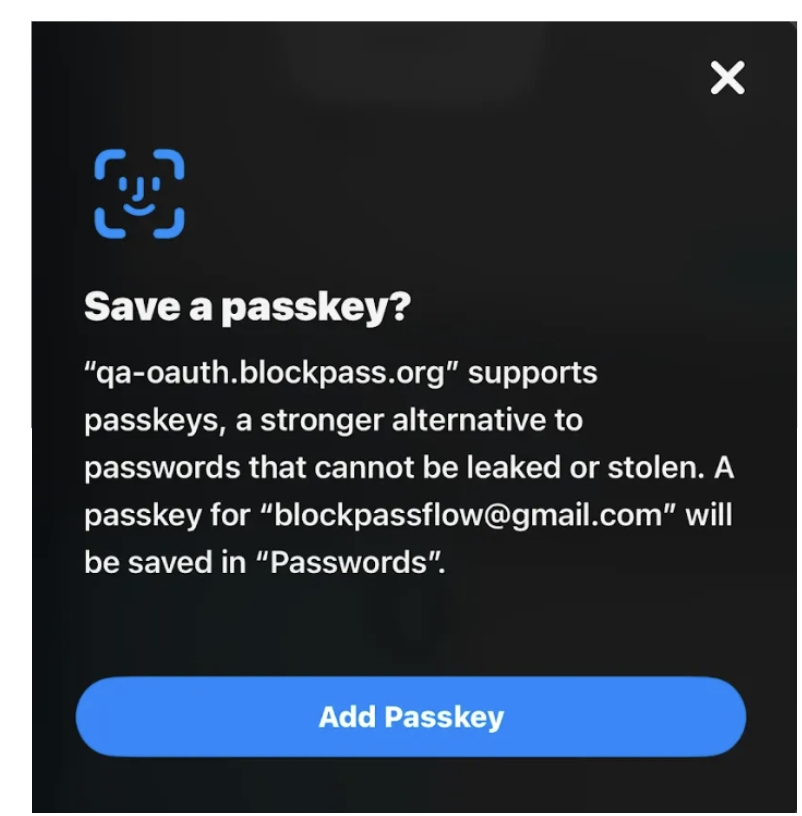
Step 3: On your Phone or Tablet, after scanning the QR code, please choose Add Passkey. The Passkey feature will be active.
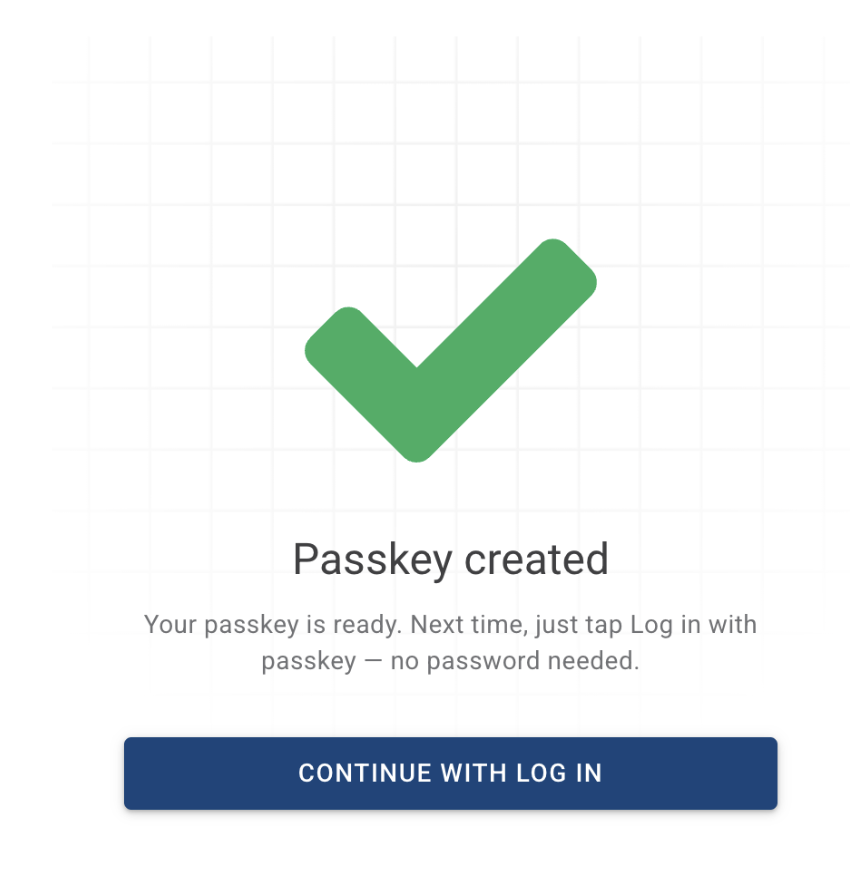
Note: If you choose “Use the phone or tablet”. You will need the device which you used to scan the QR code for login.
-
Use your Chrome profile — Save the passkey to your Chrome profile.
Step 1: Choose Use your Chrome profile.
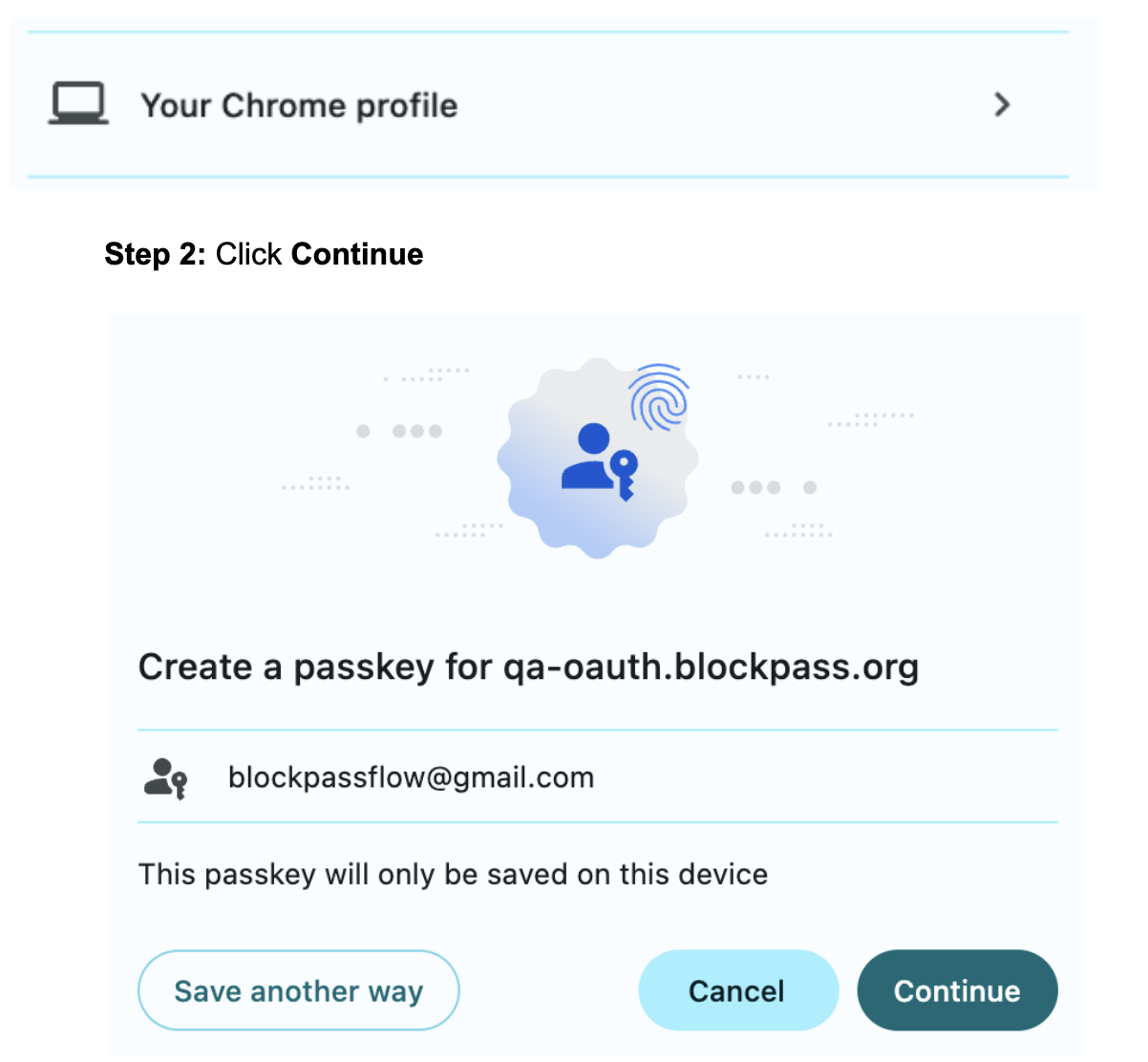
Step 2: Click Continue
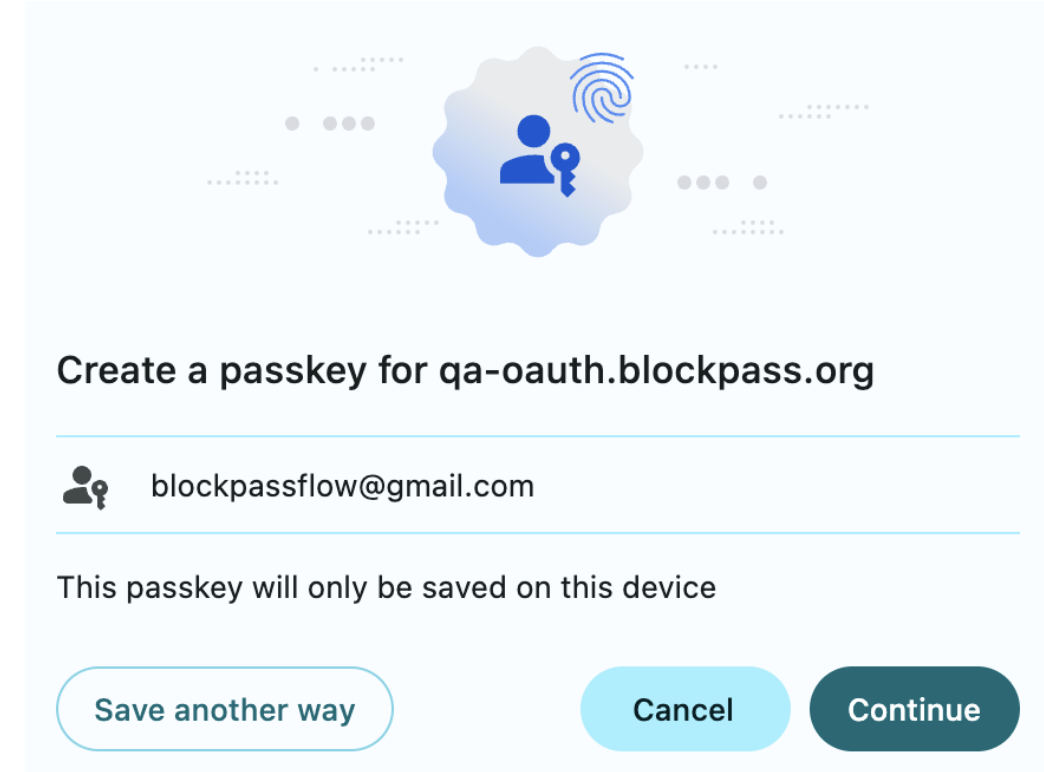
Step 3: Enter your Device Password by clicking Use Password or using the Touch ID to activate the Passkey.
-
Use USB security key — Save the passkey to USB key
Insert your security key and touch it. A record of your Passkey will be kept on your security key.
-
Disable the Passkey
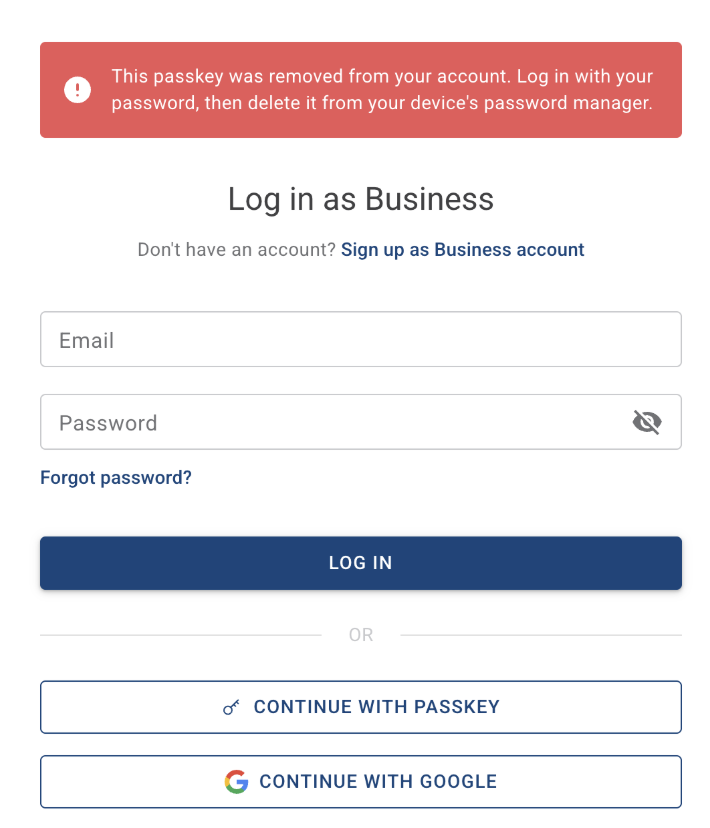
Section titled “Disable the Passkey”Log in to the oauth.blockpass.org using your existing email and password.
Under Passkeys, locate the passkey you want to remove. Click the icon next to the passkey.
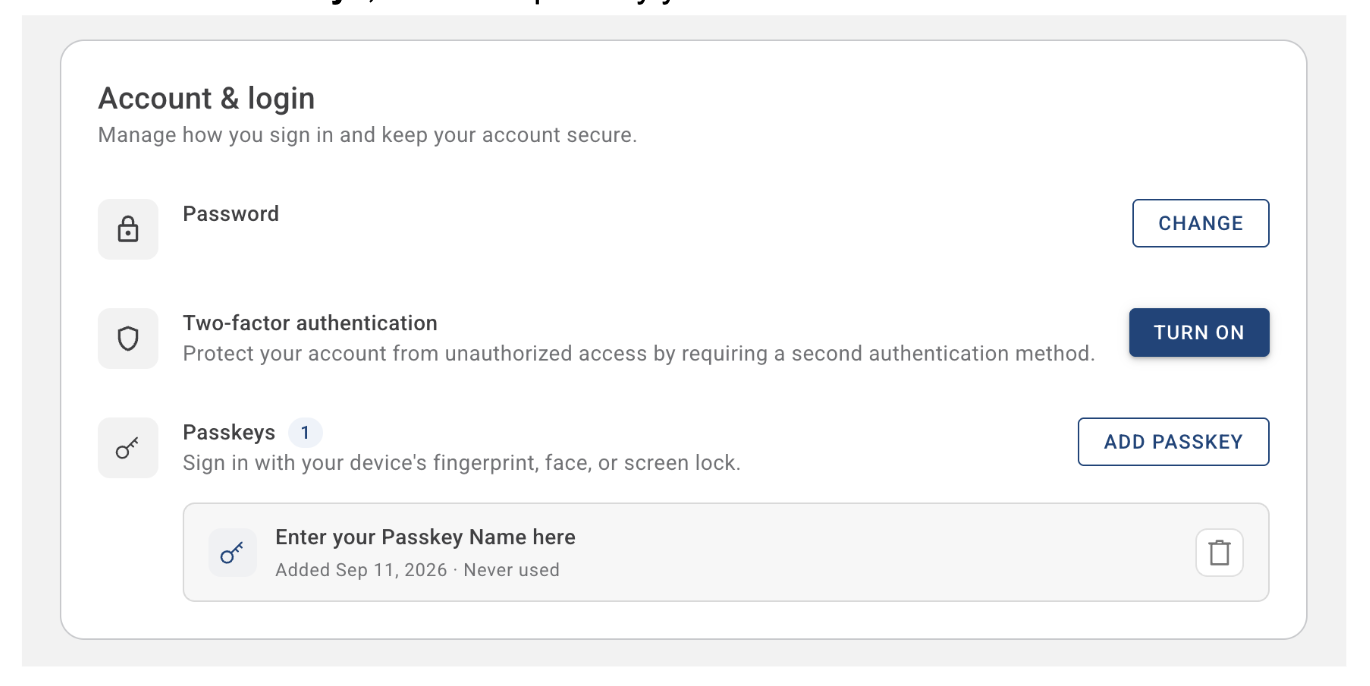
Confirm your password or Google account to remove this passkey
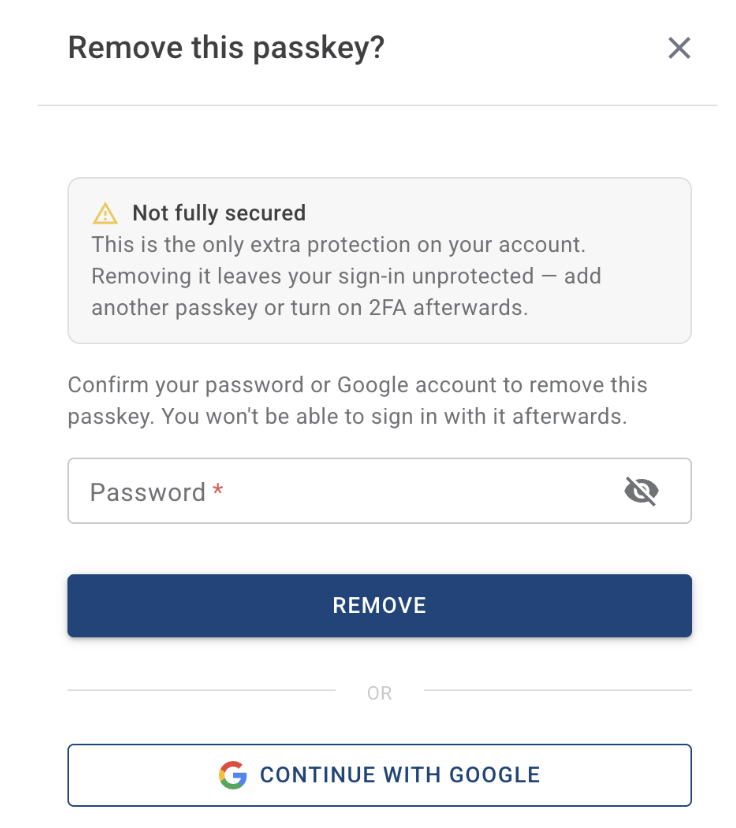
Once removed, the passkey can no longer be used to sign in to your account.